
Magazine and newspaper scans
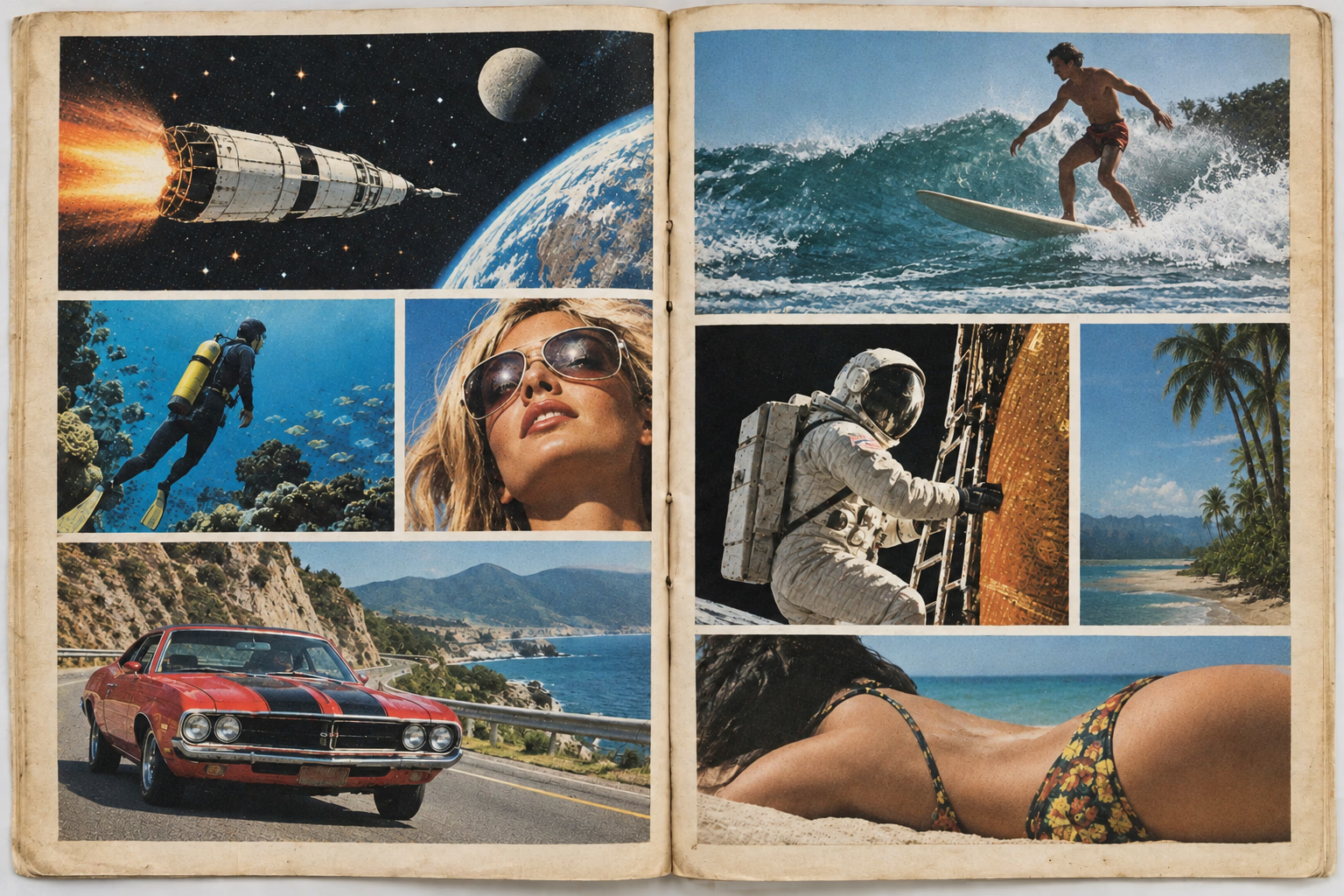
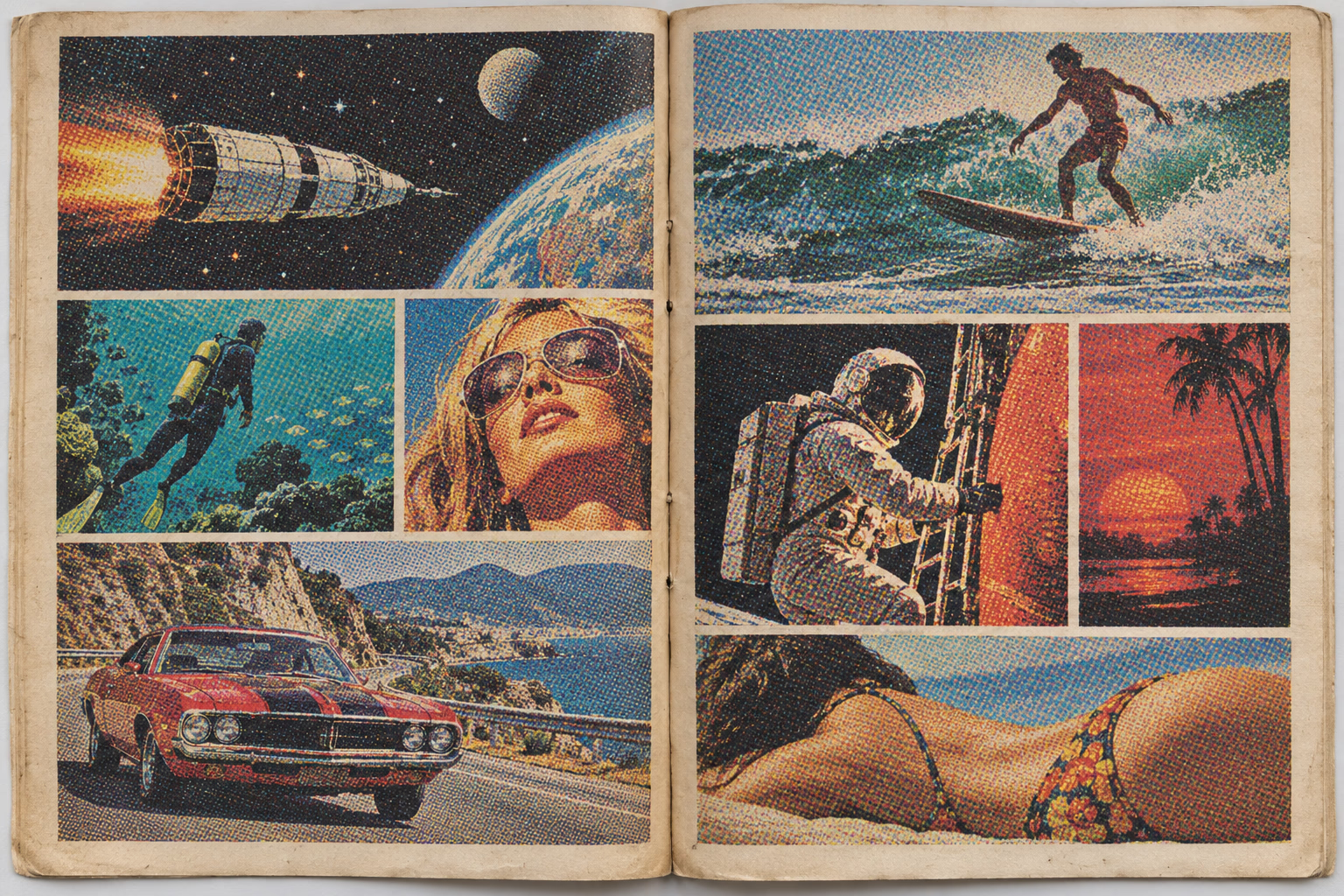
Descreen halftone rosettes and scanner moire in editorial photographs, advertisements, clippings, and feature pages.
Descreen scans and prints
Descreen an image online to reduce halftone dots, crosshatch patterns, and print moire in scanned magazines, newspapers, brochures, books, and printed photographs. The AI descreening process cleans repetitive print texture while protecting page structure and useful visual detail.
Supports JPG, PNG, WebP, and PDF
Common use cases
Process common sources of moire while keeping the subject, composition, and useful detail recognizable.
Descreen halftone rosettes and scanner moire in editorial photographs, advertisements, clippings, and feature pages.
Clean dot patterns in yearbook portraits, family prints, postcards, calendars, and older photo reproductions.
Descreen illustrations, covers, diagrams, and product imagery while retaining the overall page layout.
Simple browser workflow
Upload the original image, let the image descreen tool clean the unwanted pattern, then review and download the result.
Choose a JPG, PNG, WebP, or PDF. Avoid downscaling the scan before descreening whenever possible.
Upload nowThe image descreen tool analyzes halftone dots and repeating print interference across the page.
Compare the result with the source, especially around faces, captions, line art, and small type.
Save the result for an archive, presentation, restoration workflow, or permitted republication.
Descreen print artifacts
Halftone structure appears differently in color photographs, illustrated pages, and monochrome newsprint. Descreen each image to reduce repeating print artifacts while keeping useful detail.
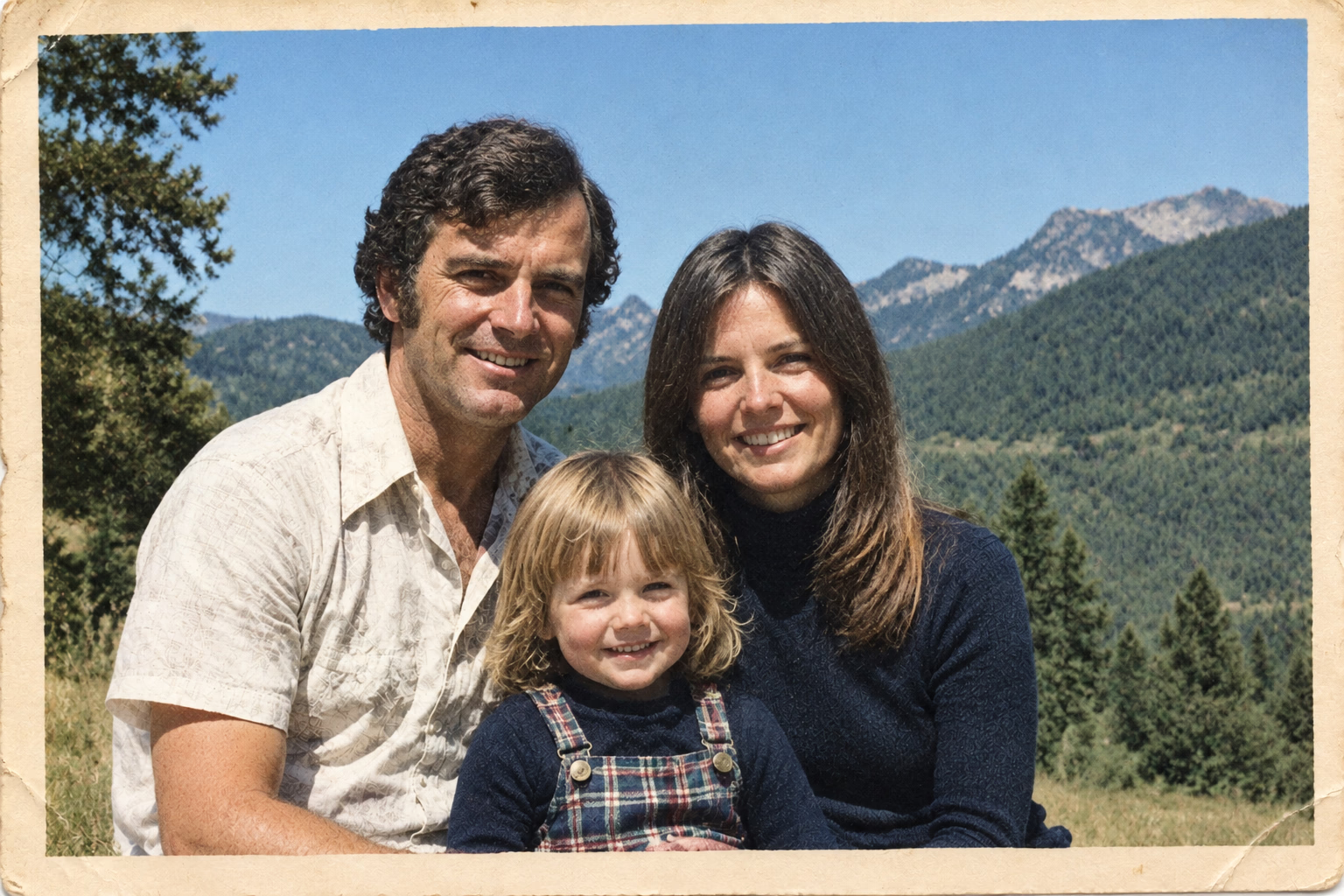
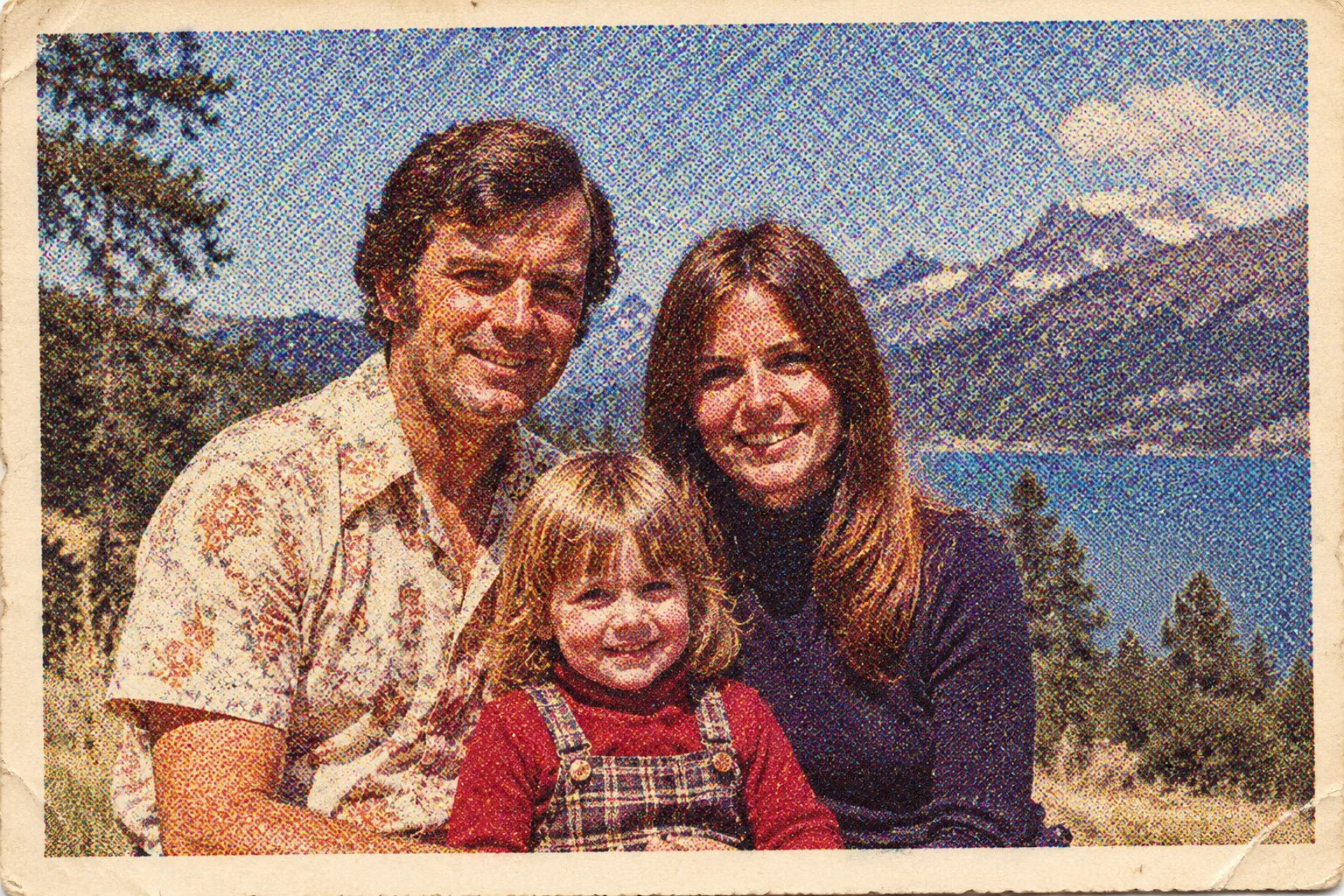
Reduce enlarged CMYK dots and rosette patterns in scanned family prints while keeping faces, clothing, and the character of the original photograph visible.
Upload to start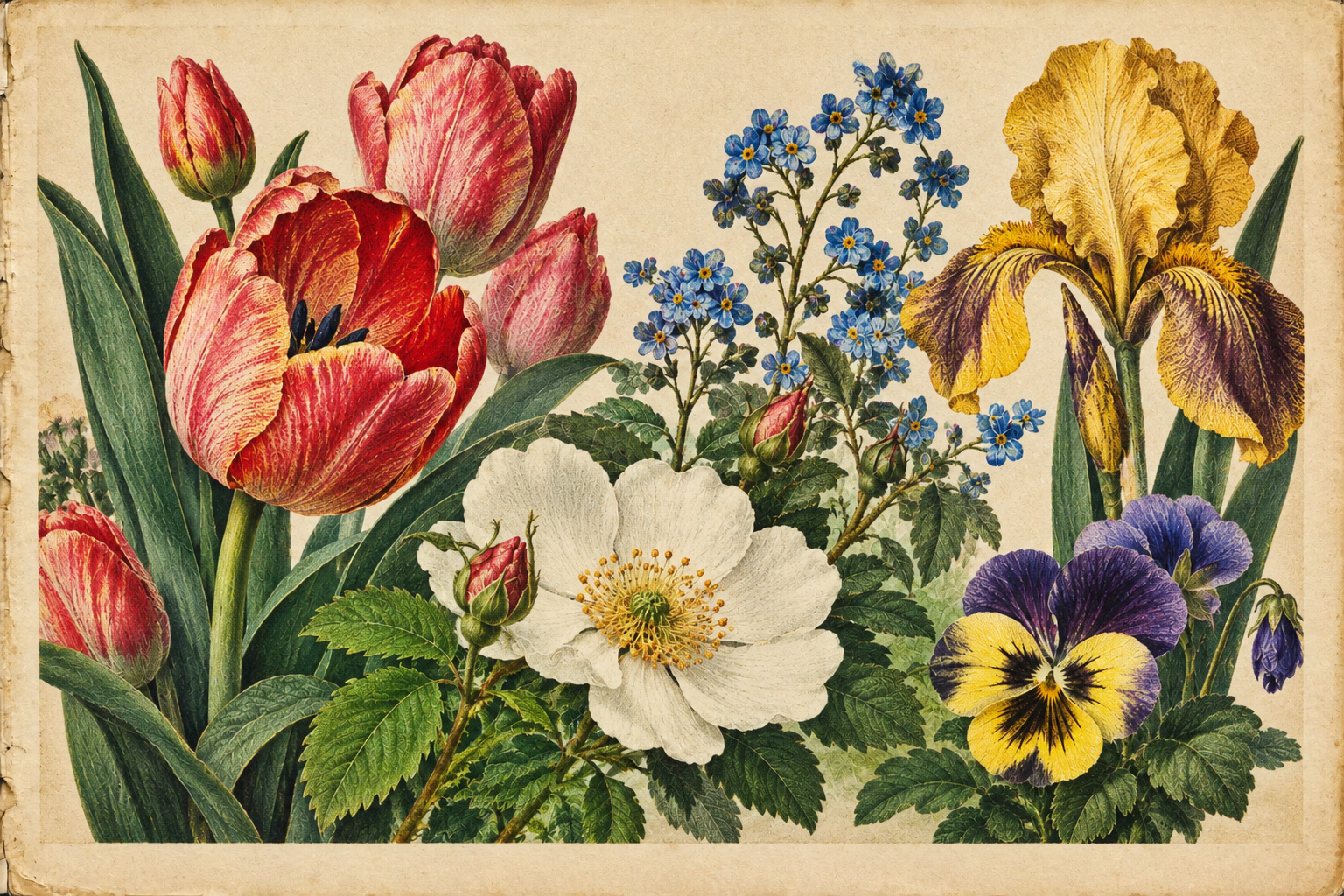
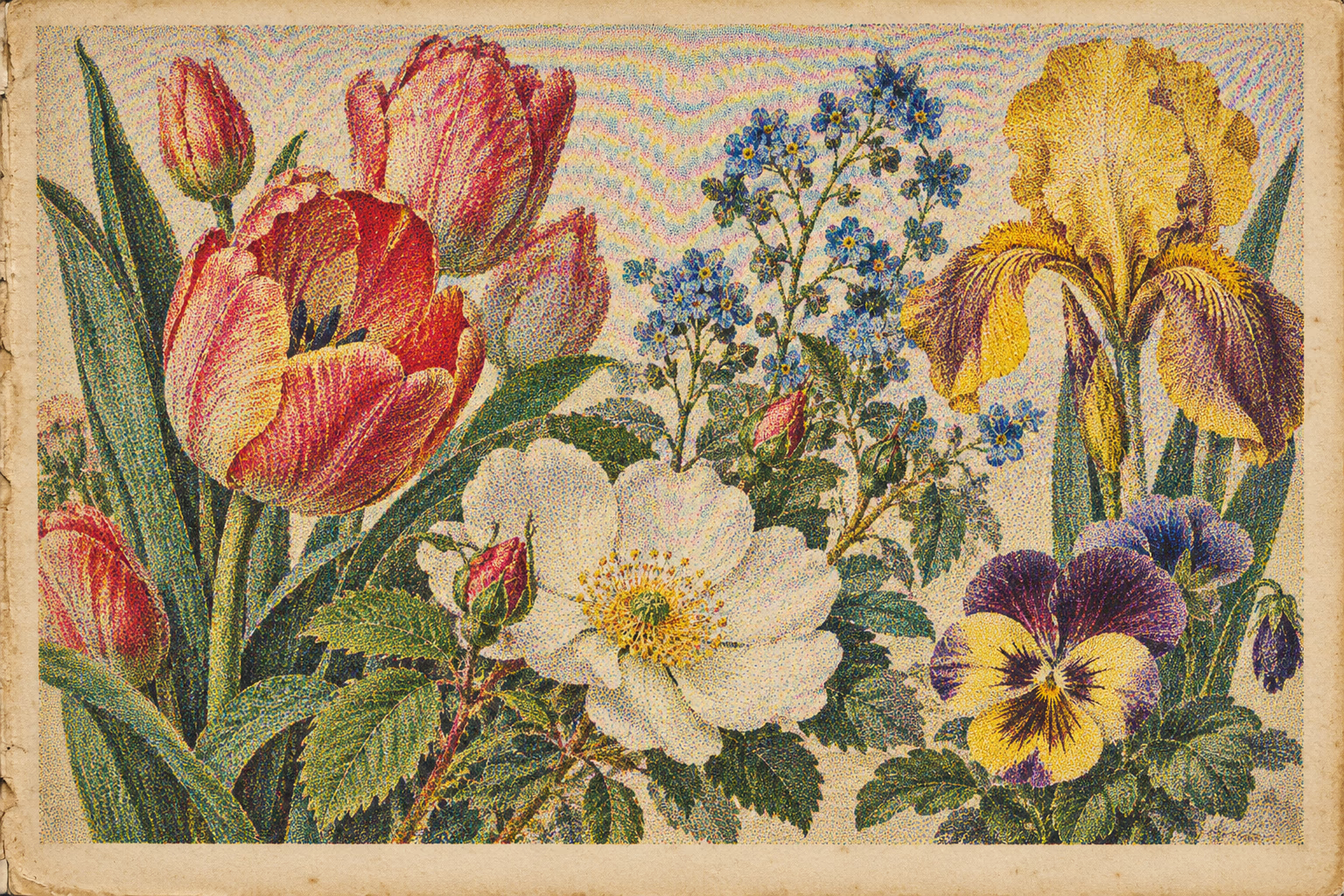
Smooth visible dot screens and color interference in botanical plates, magazine art, book illustrations, and other printed artwork.
Upload to start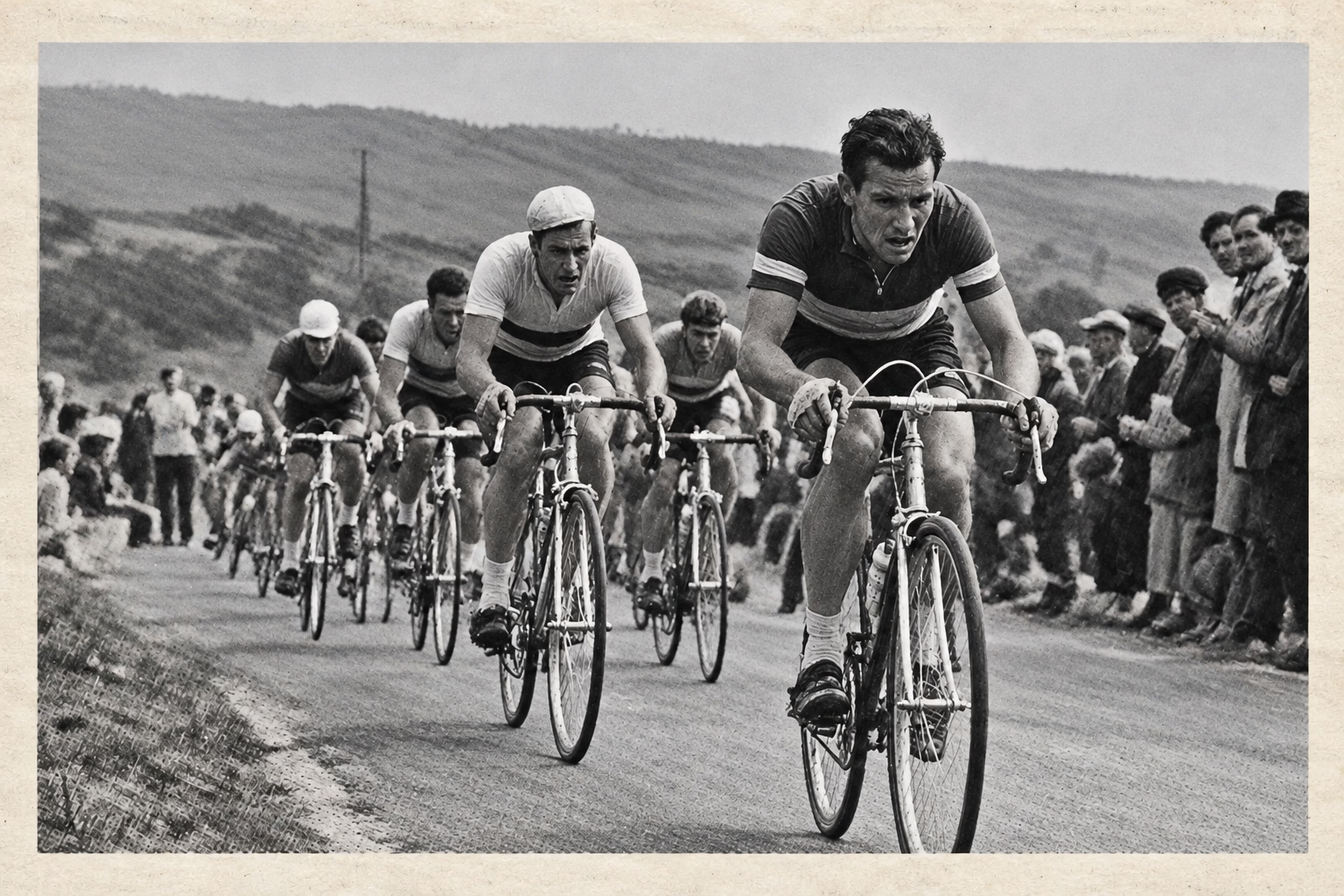
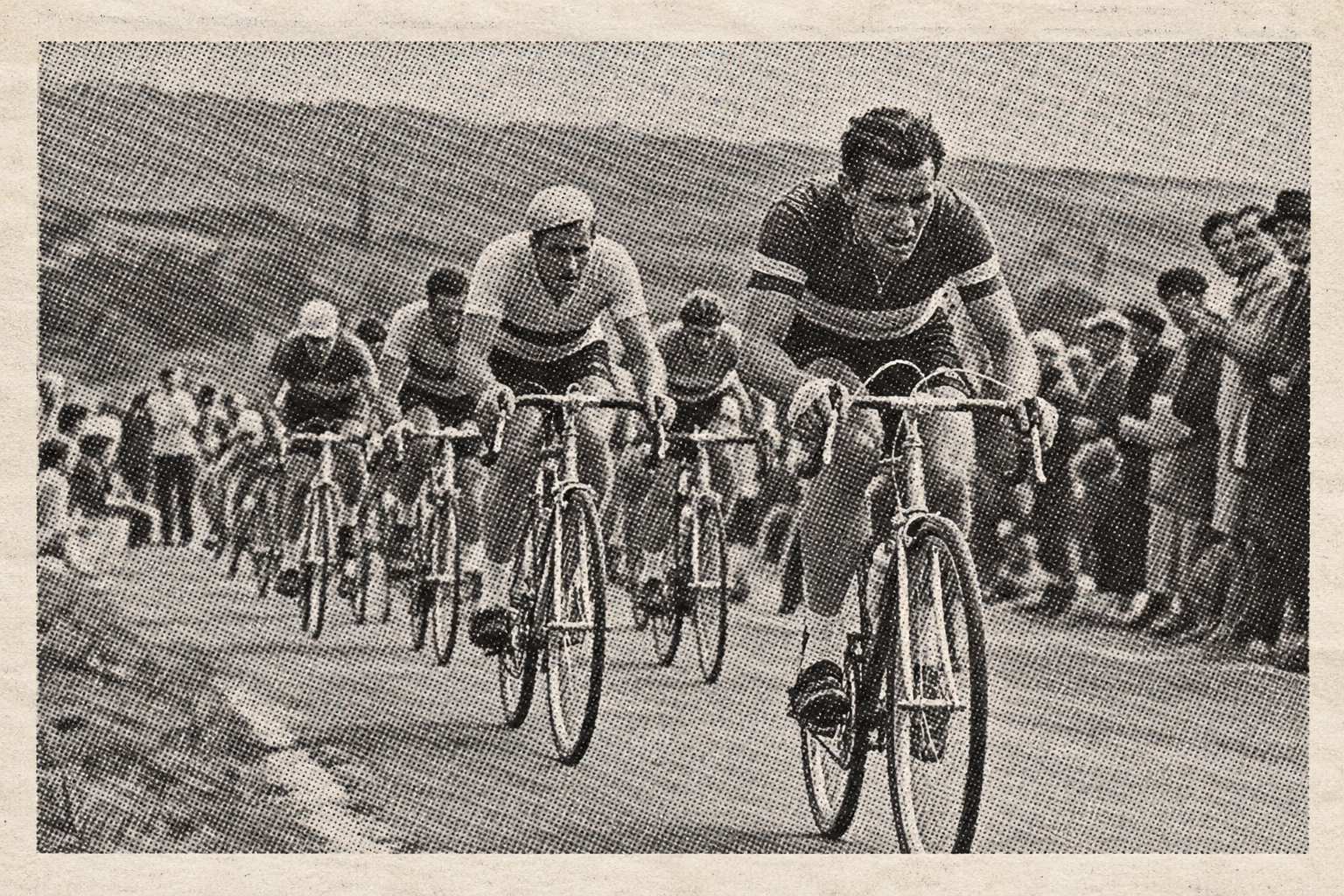
Reduce coarse black-and-white halftone patterns in clippings and archive photographs without applying a uniform blur to every edge.
Upload to startFor a better result
Helpful details about supported images, expected results, and using the image descreen tool.
Use the image descreen tool for periodic print patterns such as halftone dots, rosettes, and crosshatching. Denoising usually targets random sensor noise or grain, so it may not descreen structured print interference.
Yes. You can descreen color and monochrome scans. Color printing often creates overlapping CMYK dot screens and colored rosettes that require more targeted correction than a simple grayscale blur.
The image descreen tool aims to retain meaningful edges, captions, and page structure while reducing print texture. Tiny text can overlap halftone dots, so review names, dates, and important wording after you descreen the page.
Supported PDF pages are prepared as individual images so you can descreen and inspect each one separately. The number of pages available at once may depend on your account and current usage limits.
Yes. You can descreen a straight, evenly lit camera photo of a magazine, print, book, or brochure. The source does not need to come from a flatbed scanner when the printed dot pattern is visible.
Use a stable, reasonably high resolution that captures the print pattern clearly. Descreen the full scan before reducing its dimensions, then resize and apply final output sharpening after the halftone interference has been cleaned.
The image descreen tool can help when a family photo is a printed reproduction, yearbook image, postcard, or magazine clipping. It works to descreen the print texture while retaining faces and clothing.
Yes. You can descreen botanical plates, catalog illustrations, comic panels, posters, and other artwork with visible halftone dots. Review fine line art and deliberate texture to ensure they remain natural.
Yes. Use the image descreen tool when coarse black dots become obvious in scanned newsprint. It can descreen the pattern without applying a uniform blur across every photographic edge.
No. Scanner sharpening makes halftone dots and rosettes more pronounced. Descreen the image first with low input sharpening, then apply gentle output sharpening after reviewing the cleaned result.
The image descreen workflow preserves the source aspect ratio, so the scan is not forced into a square. You can descreen the page while keeping its framing and overall layout consistent.
A descreen result can support restoration and archive workflows, but verify visual accuracy and confirm permission to reproduce the source. Keep the original scan as an unedited reference after you descreen it.
Upload your image, remove the unwanted moire, review the result, and download the cleaner version.