
Computer monitors
Use the remover to clean rolling waves and rainbow grids from desktop and laptop display photos used in documentation, support, and product demos.
Screen photo cleanup
Use the screen moire remover to clean rainbow bands, curved waves, scan lines, and pixel-grid interference from photos of monitors, televisions, laptops, projectors, and mobile displays. The AI works on the unwanted pattern while preserving the visible screen content and natural framing of your photo.
Supports JPG, PNG, WebP, and PDF


Common use cases
Process common sources of moire while keeping the subject, composition, and useful detail recognizable.
Use the remover to clean rolling waves and rainbow grids from desktop and laptop display photos used in documentation, support, and product demos.
Reduce colored interference in television frames, digital signage, stage screens, and presentation displays.
Improve close-up photos of mobile interfaces, device tests, app previews, and damaged screens when direct capture is not possible.
Simple browser workflow
Upload the original image, let the screen moire remover clean the unwanted pattern, then review and download the result.
Choose the original JPG, PNG, WebP, or PDF page. A larger, less-compressed source gives the screen moire remover more useful detail.
Upload nowStart the remover. It identifies repeating display interference and reconstructs a cleaner view of the underlying screen content.
Compare the result with the original, paying attention to small text, interface edges, faces, and fine graphics.
Save the corrected result for listings, reports, presentations, archives, or social posts.
Focused screen cleanup
Screen interference changes with pixel density, viewing distance, and display technology. These examples show where the remover can produce a cleaner result.
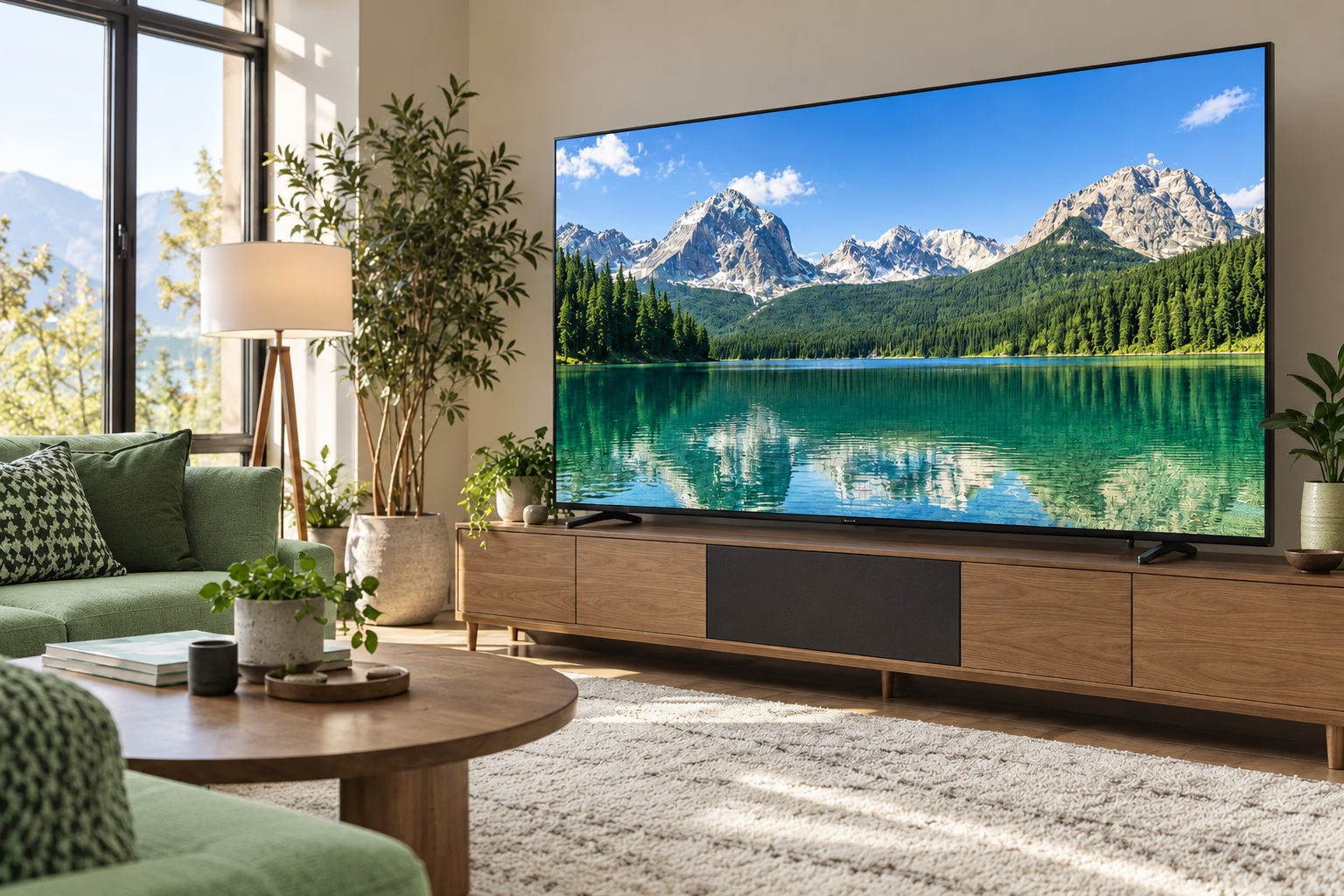
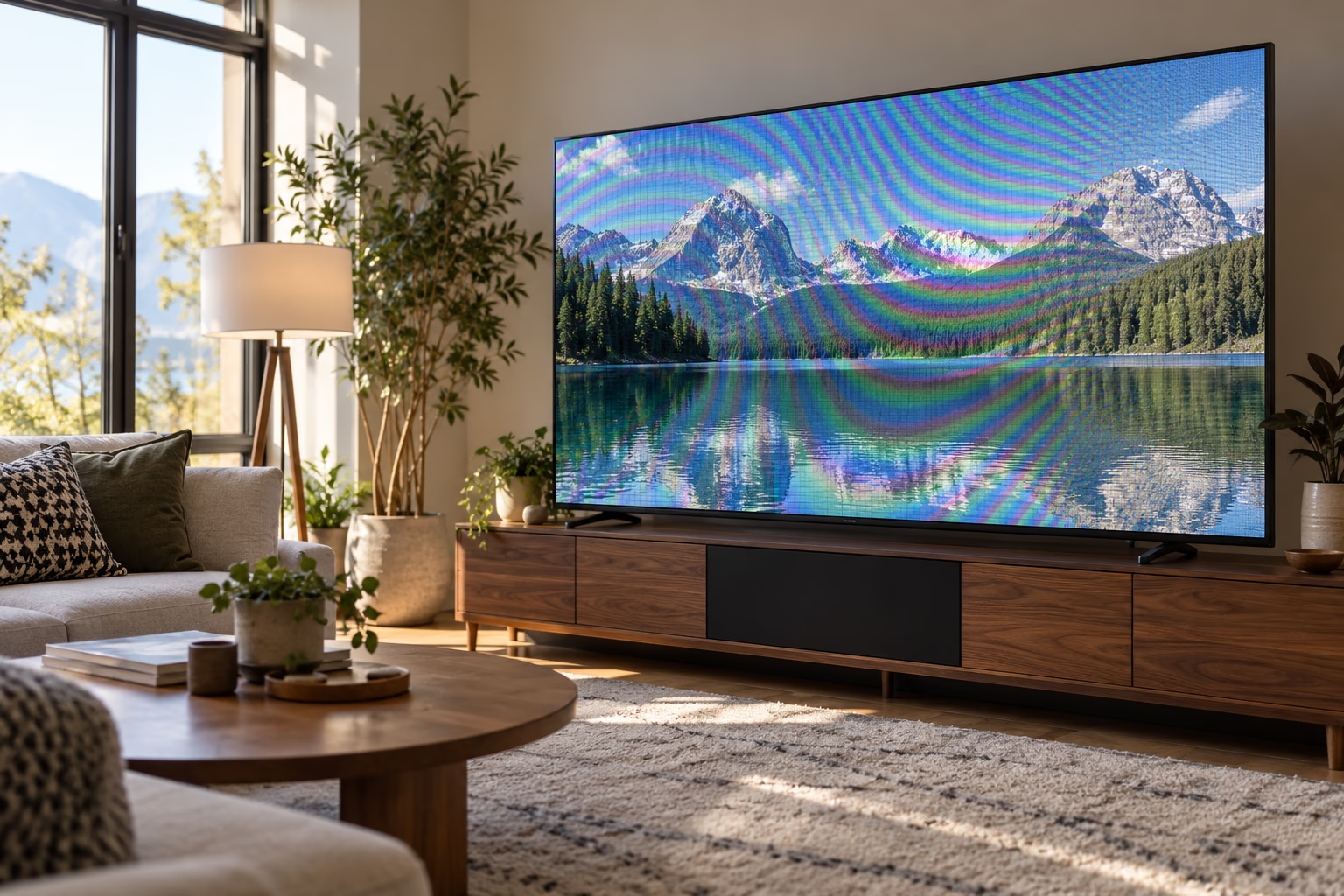
The remover reduces broad color bands and pixel-grid ripples in living-room TV photos while keeping the displayed scene, bezel, and surroundings recognizable.
Upload to start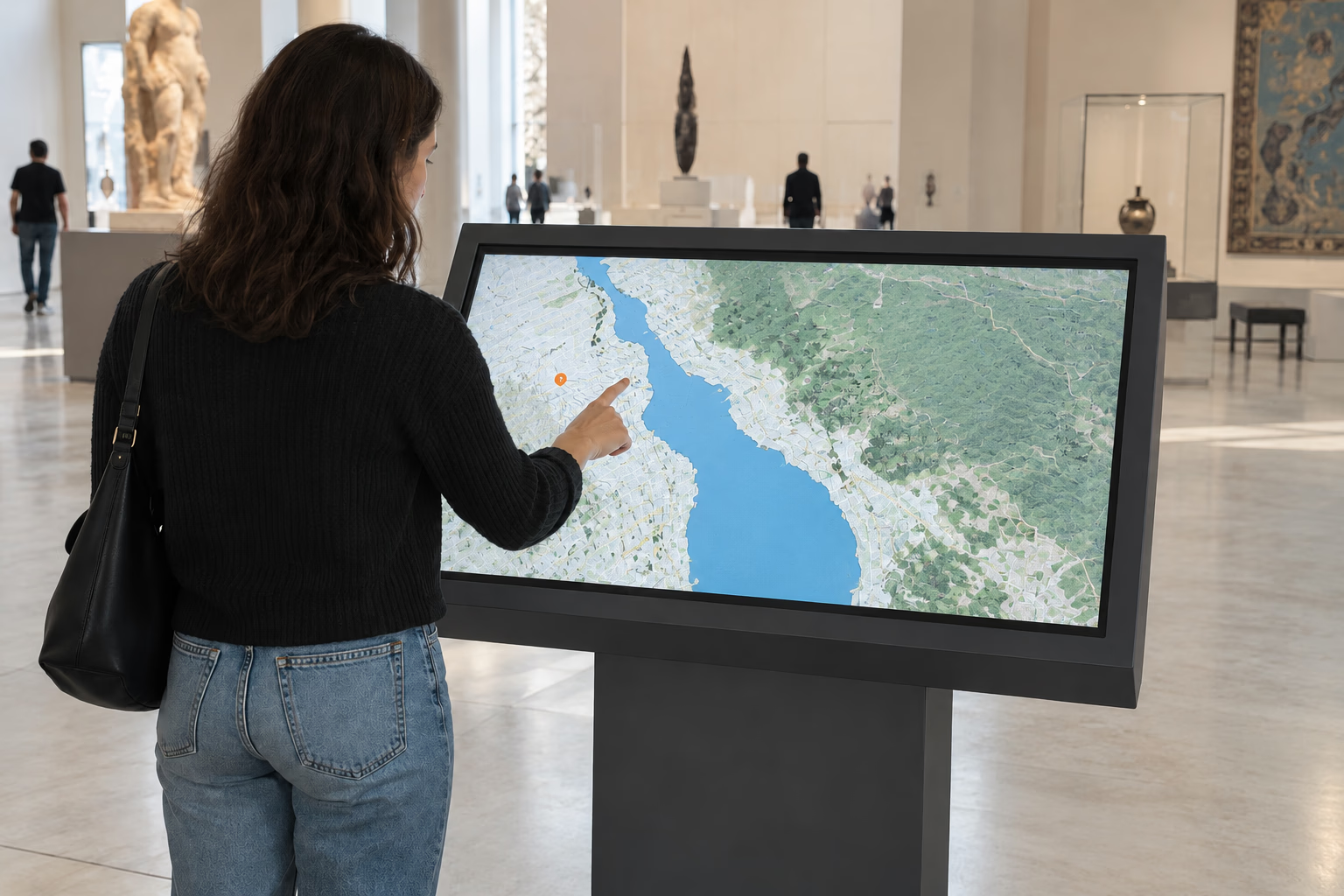
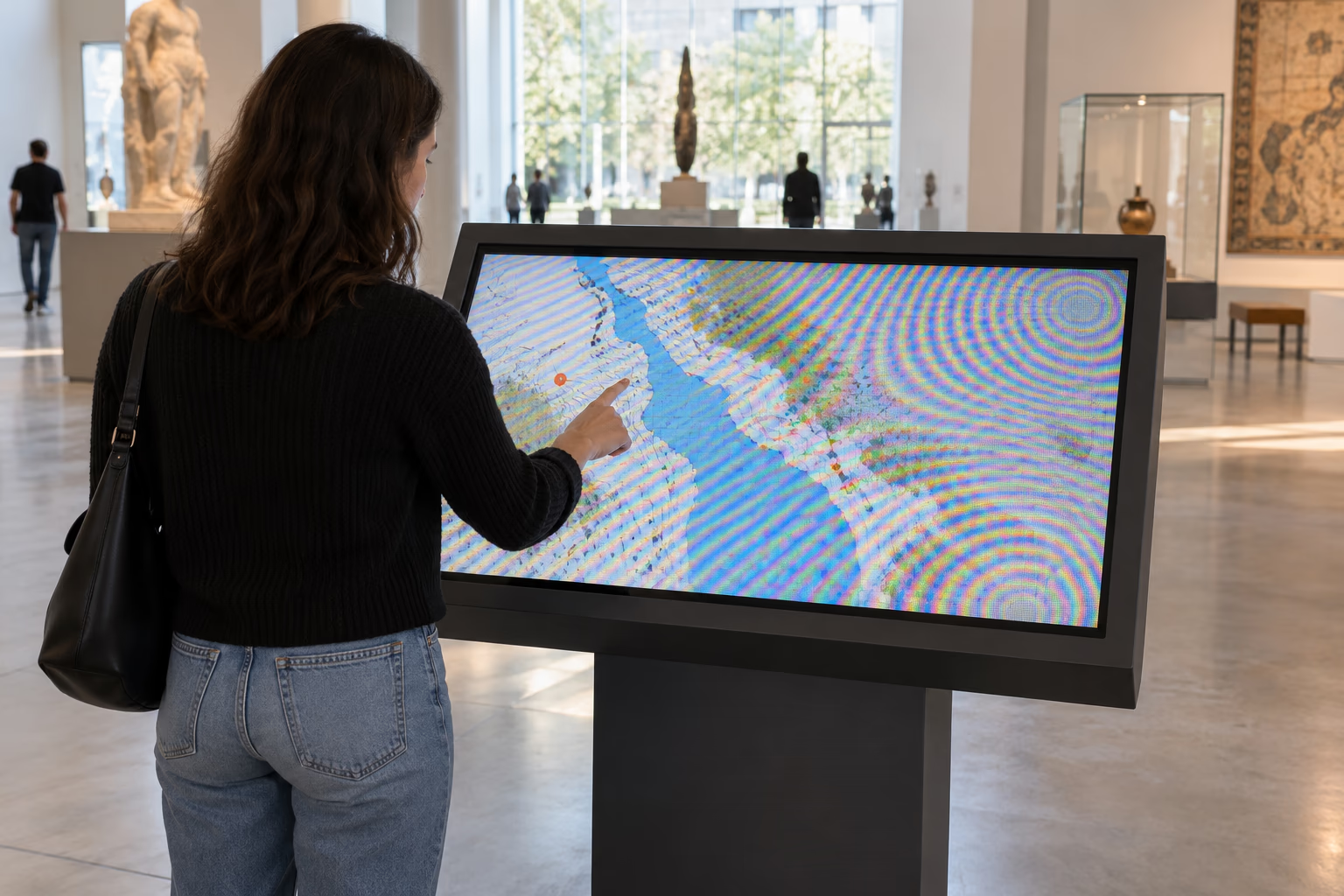
This remover reduces circular interference and diagonal scan patterns on photographed kiosks, information panels, and touch displays without flattening the complete photo.
Upload to start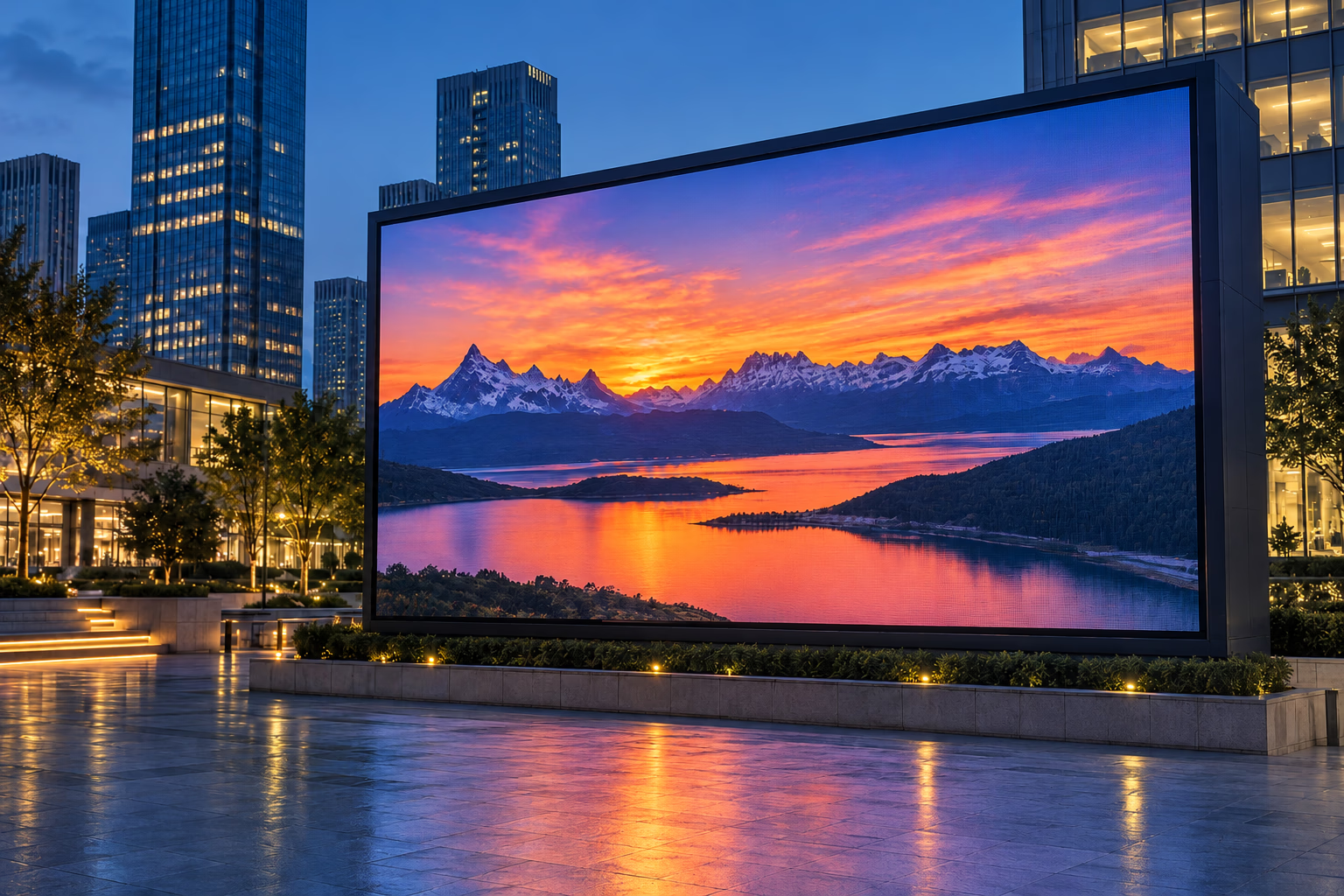
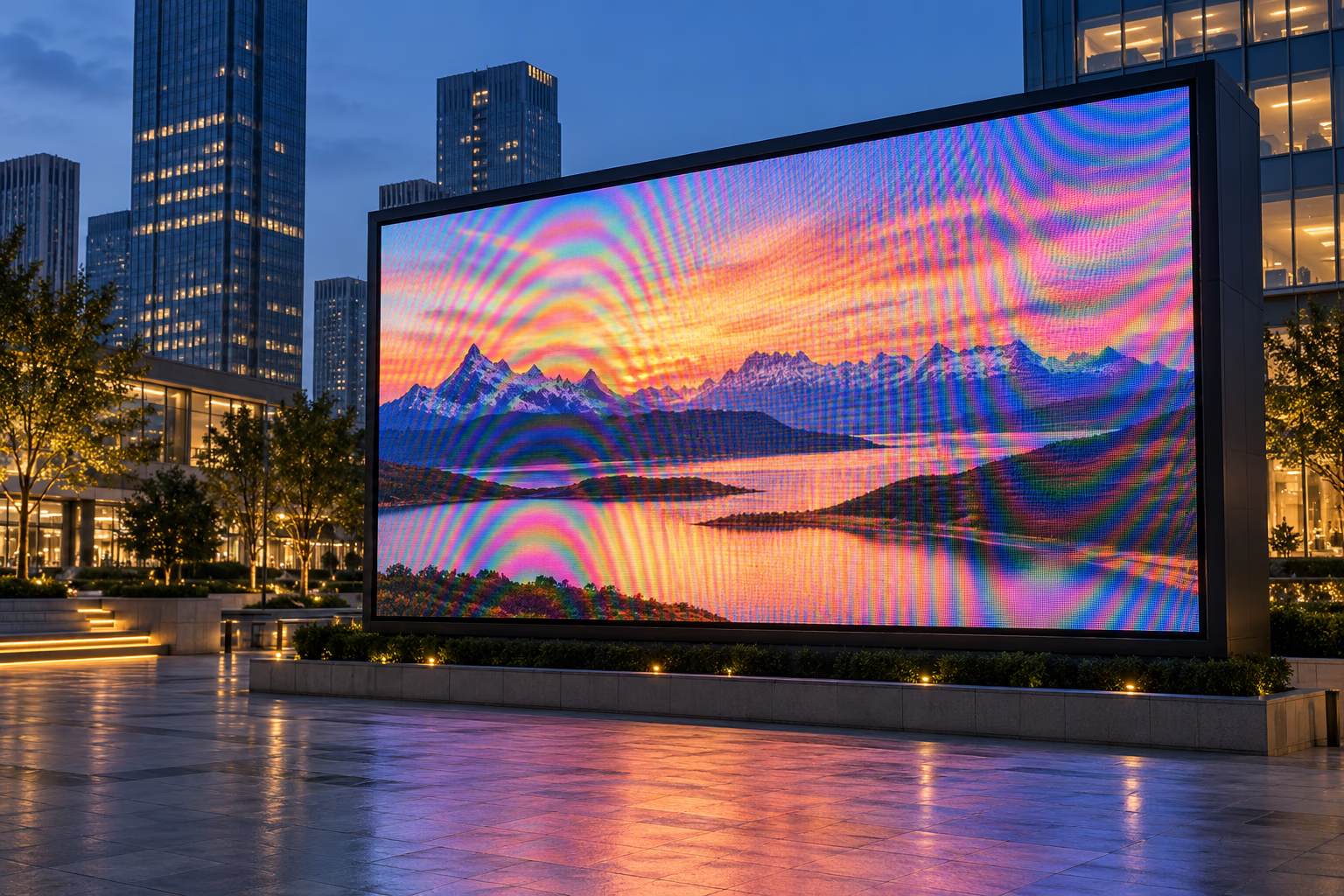
The remover cleans dense waves and false colors from large LED panels used in plazas, events, stores, and presentations while retaining the wider environment.
Upload to startFor a better result
Helpful details about supported images, expected results, and using the screen moire remover.
The screen moire remover can process photos of monitors, televisions, laptops, tablets, phones, projectors, kiosks, and LED displays. Results depend on focus, exposure, compression, and how strongly the interference covers the visible content.
The screen moire remover aims to preserve meaningful edges and visible text while reducing interference. Severe moire may already hide very small characters, so compare important labels, numbers, and interface elements with the original before using the result.
No. The screen moire remover processes still images and exported frames. It can clean a video thumbnail or an individual frame, but it does not analyze motion or apply correction across an entire video clip.
Yes. The screen moire remover works with phone photos that show rainbow bands or pixel-grid waves. Upload the original camera image rather than a compressed copy from a messaging app for the best available detail.
Yes. The screen moire remover can reduce interference in television photos, stage screens, presentation displays, digital signage, and LED walls. Very dense panels or overexposed highlights may leave some artifacts after processing.
The screen moire remover is designed to retain the displayed picture, interface, framing, and surrounding scene. Because strong interference can obscure real pixels, review faces, fine graphics, and small text carefully in the comparison view.
The screen moire remover supports JPG, PNG, and WebP images, as well as supported PDF pages. A full-resolution source usually provides more useful information than a cropped preview or repeatedly saved image.
Not always. Heavy banding, blur, clipped highlights, low resolution, or strong compression may permanently hide parts of the display. The screen moire remover can reduce the distraction but cannot recover detail that was never captured.
No. Sharpening strengthens pixel grids and colored ripples, making them harder to separate from real content. Use the screen moire remover on the original photo, then apply final resizing or sharpening afterward.
Use a direct screenshot whenever one is available because it avoids camera-to-display interference entirely. This remover is intended for situations where the physical screen, device, installation, or surrounding environment must remain visible.
The workflow preserves the input aspect ratio so the photo is not forced into a square crop. Output pixel dimensions may be optimized during processing while the original framing and overall composition remain consistent.
Try moving slightly closer or farther away, changing the camera angle, lowering in-camera sharpening, or adjusting focus. Even a small change in distance can reduce the interaction between the camera sensor and display grid.
Upload your image, remove the unwanted moire, review the result, and download the cleaner version.