
01
Upload your image
Choose a JPG, PNG, WebP, or PDF containing visible moire. You can upload a screen photo, scanned print, product image, portrait, or another picture affected by repeating patterns.
Upload nowReduce rainbow ripples in screen photos, false waves on clothing, and halftone dots in scanned prints. Upload your image or PDF, run the AI moire remover, and compare the result with your original before downloading.
Supports JPG, PNG, WebP, and PDF


Moire remover use cases
Clean common moire patterns while preserving the subjects and details that belong in the photo.
Reduce halftone dots and print interference in scanned magazines, newspapers, and photo reproductions.
Use the remover on moire lines and color bands from monitors, TVs, and phones.
Reduce false rainbow waves on photographed shirts, suits, and woven products while reviewing the real texture.
Upload a phone photo in your browser, compare the cleanup, and save the result without installing an app.
Moiré is interference between fine repeating patterns. In a photo, it can look like rainbow waves, curved bands, or a grid that was not visible in the subject. A photographed display, a finely woven shirt, and a scanned magazine can need different kinds of cleanup.
For printed dots and rosettes, use image descreening. For camera interference, choose the screen photo or clothing photo workflow. Always compare fine text, faces, and real texture with the source: reducing a pattern can also soften details that overlap it.
Simple online workflow
The AI moire remover gives you a straightforward way to clean unwanted interference patterns without learning complicated photo-editing controls.
Choose a JPG, PNG, WebP, or PDF containing visible moire. You can upload a screen photo, scanned print, product image, portrait, or another picture affected by repeating patterns.
Upload nowStart the cleanup. The moire remover analyzes the interference while working to retain useful edges, colors, text, and real surface detail in the image.
Drag the comparison slider to review the original moire beside the cleaner result. If the balance looks right, download the processed image to your device.
Focused moire cleanup
Moire can appear as waves, grids, dots, false colors, or bands. The remover is designed for common patterns found in photographed displays, scanned print, and finely textured subjects.
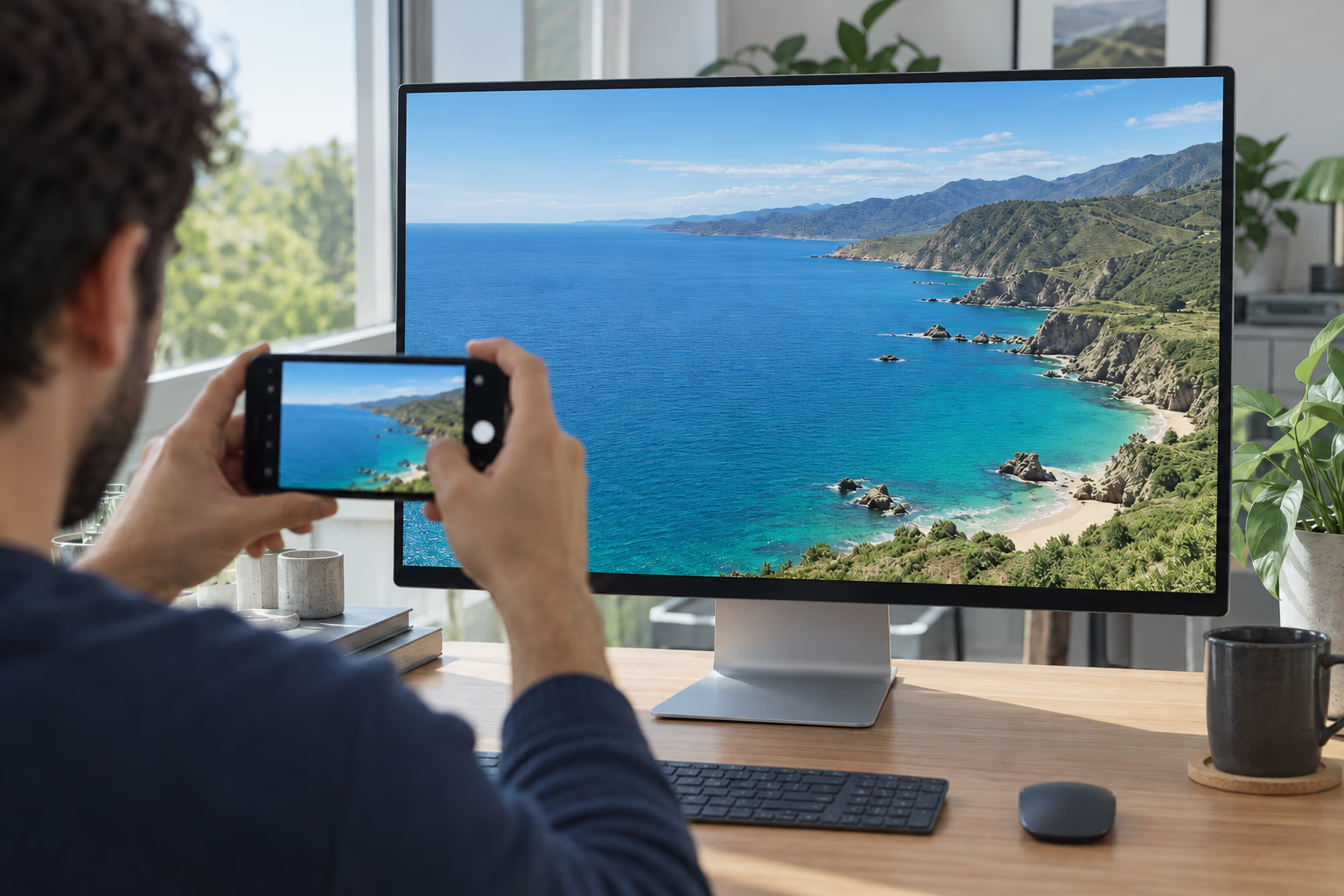
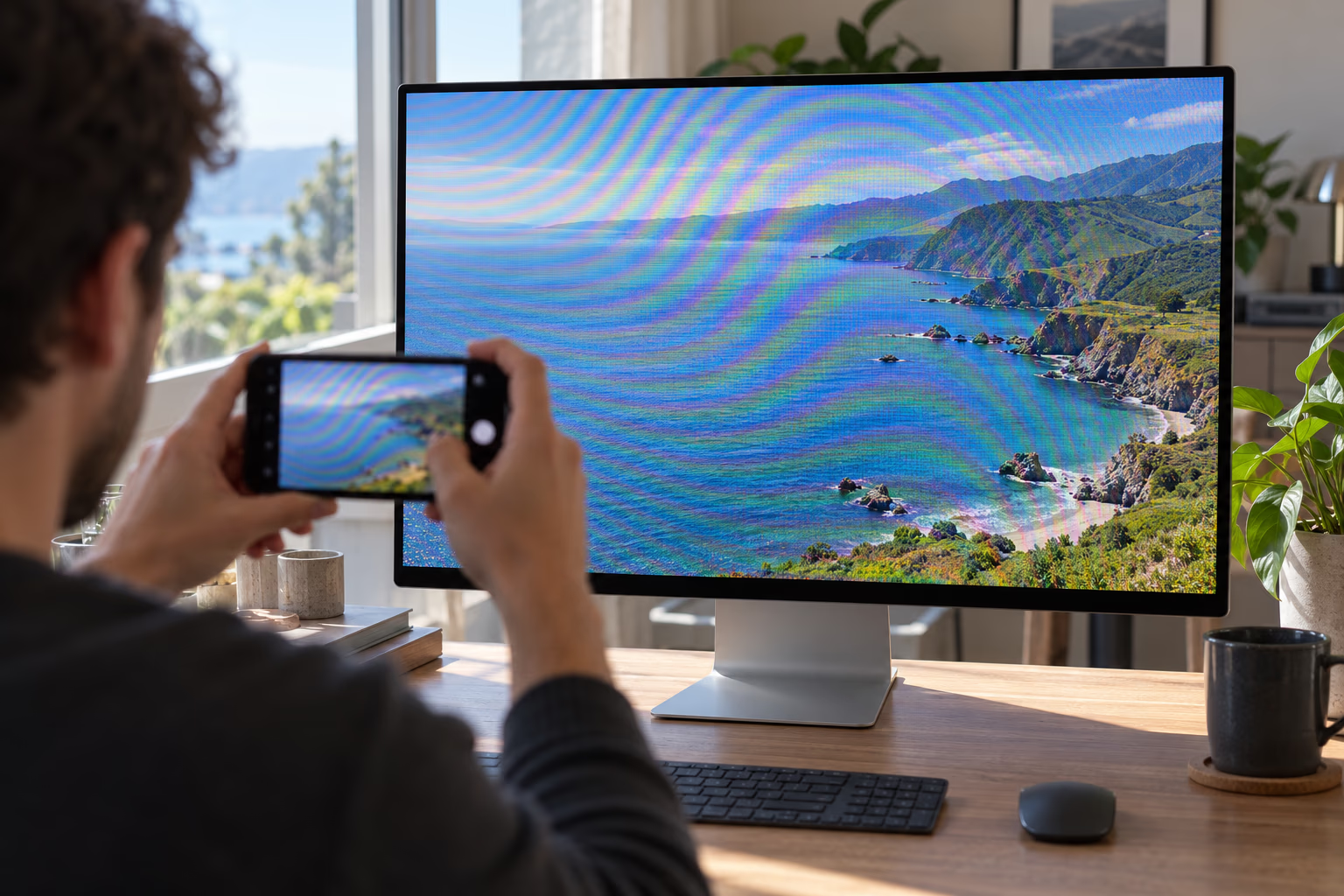
Photographing a monitor, television, tablet, or phone can create rolling lines, rainbow bands, and fine grid interference. The AI moire remover reduces those distracting patterns while keeping interface elements, pictures, and visible text as clear and natural as possible.
Remove moire from screen photosUpload to start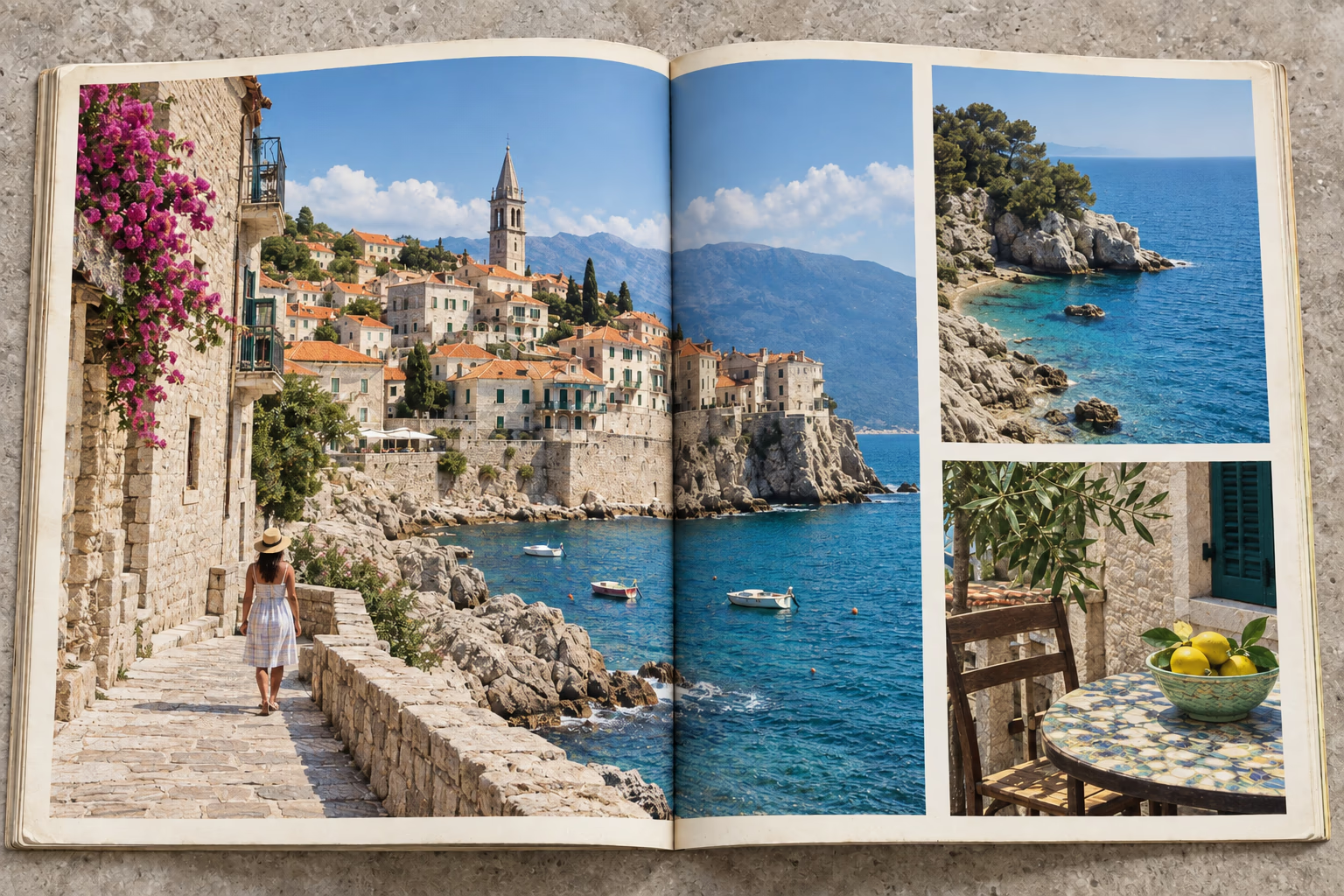
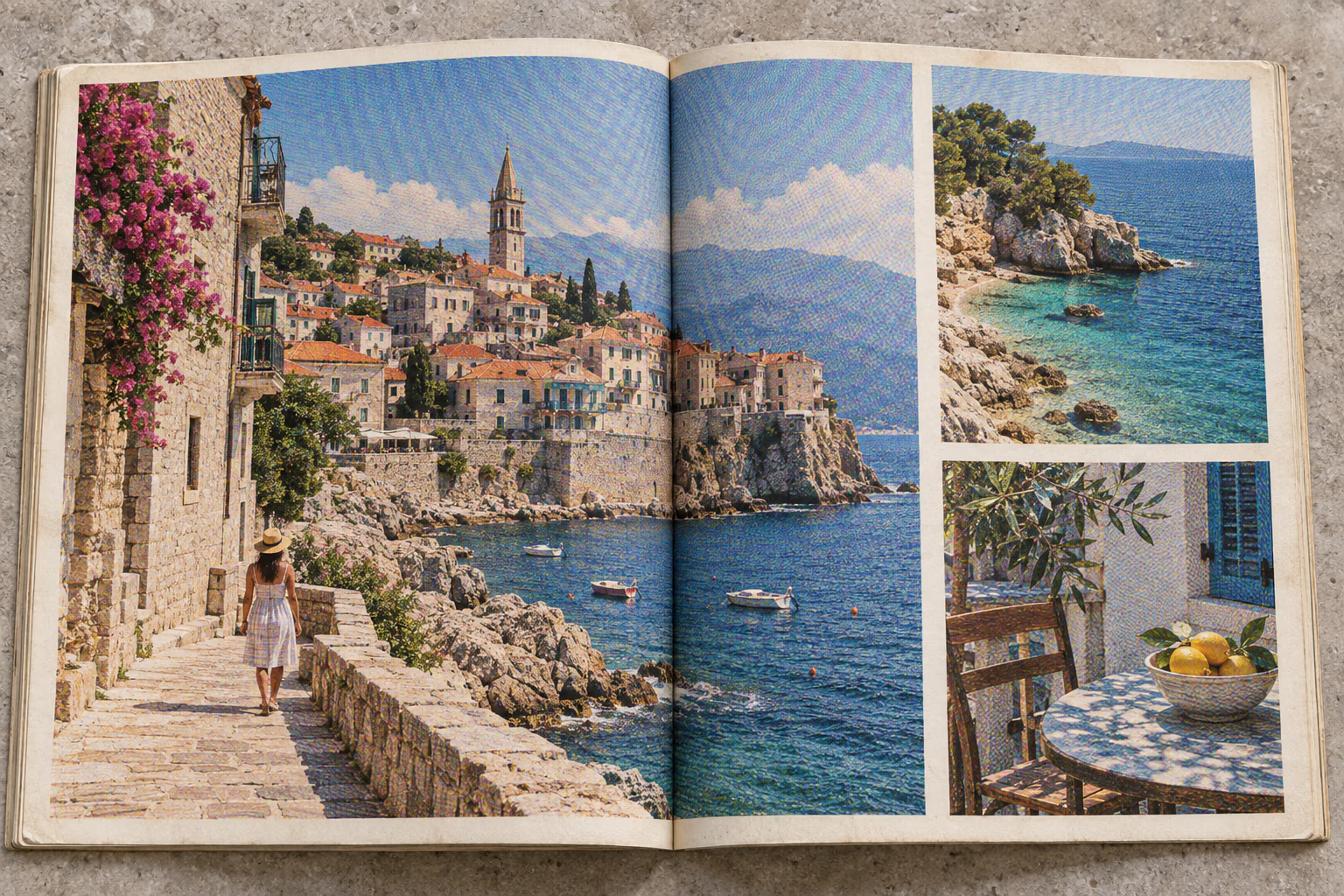
Magazines, newspapers, brochures, books, and old prints often reveal dot screens when they are scanned or photographed. The moire remover can soften this printed interference while preserving the page structure and the details that belong in the original image.
Descreen a scanned imageUpload to start

Fine checks, stripes, mesh, and woven materials can produce false waves or colors in a camera image. The AI moire remover aims to separate unwanted moire from authentic texture, helping portraits, clothing photos, and product images look cleaner without making every surface unnaturally smooth.
Remove moire from clothing photosUpload to startAnswers about moire patterns, supported images, expected results, and using the online remover.
Moire removal covers interference in screen photos, clothing, and other repeating detail. Descreening specifically reduces the printed halftone dots and related interference visible in scanned or photographed print. Choose the image descreening page for magazines, newspapers, and printed photo reproductions.
Moire is an interference pattern created when fine repeating detail interacts with a camera sensor, display grid, scanner, or printed halftone screen. It may appear as waves, colored bands, rings, grids, or dots that were not present in the original subject.
An AI moire remover identifies repeating artifacts that differ from natural edges and textures. It reduces the visible interference and reconstructs a cleaner result using the surrounding image, which is more targeted than applying blur across the entire photo.
Yes. Photos of monitors, televisions, tablets, projectors, and phones commonly show moire when the display grid interacts with the camera sensor. The remover can reduce ripples, colored bands, and pixel-grid artifacts while retaining the wider scene.
Yes. It can reduce halftone dots and repeating print patterns in magazines, newspapers, books, brochures, yearbooks, and older photo reproductions. This type of cleanup is often called descreening and works on both scanned and photographed pages.
Yes. Fine stripes, checks, mesh, and woven fibers can create false waves or colors in fashion and product photos. The remover aims to reduce those artifacts while retaining genuine folds, seams, garment shape, and fabric texture.
The remover accepts JPG, PNG, and WebP images, as well as supported PDF files. Use the largest, least-compressed source available because it gives the tool more useful detail than a thumbnail or repeatedly saved copy.
You can prepare multiple images or PDF pages in the workspace and switch between them using the thumbnail panel. Each page is handled separately so you can inspect its original image and processed result before downloading.
The remover is designed to distinguish interference from real edges, faces, text, and surface texture. Severe moire can overlap genuine detail, so use the comparison view to check important areas and confirm that the result remains natural.
Not always. Strong interference, motion blur, low resolution, compression, or clipped highlights can permanently hide detail. The remover may make these patterns less distracting, but it cannot recreate information that was never captured in the source image.
Start with the original, least-compressed image and avoid sharpening it before upload. After processing, compare fine text, faces, fabric, product colors, and straight edges with the source before downloading the final result.
No. Upload an image, start the cleanup, and review the result in the comparison view. There are no masks, brushes, frequency controls, or manual selections to configure before processing.
Only upload images and documents that you own or are authorized to process. Avoid highly sensitive material unless you are comfortable with the handling described in the Privacy Policy, and review important output before professional or archival use.
Upload a screen photo, scan, fabric image, or PDF and let the AI moire remover create a cleaner result you can compare before downloading.