
How to Remove Moire from a Photo of a Screen
Start with the difference
What changes when you remove screen moire?
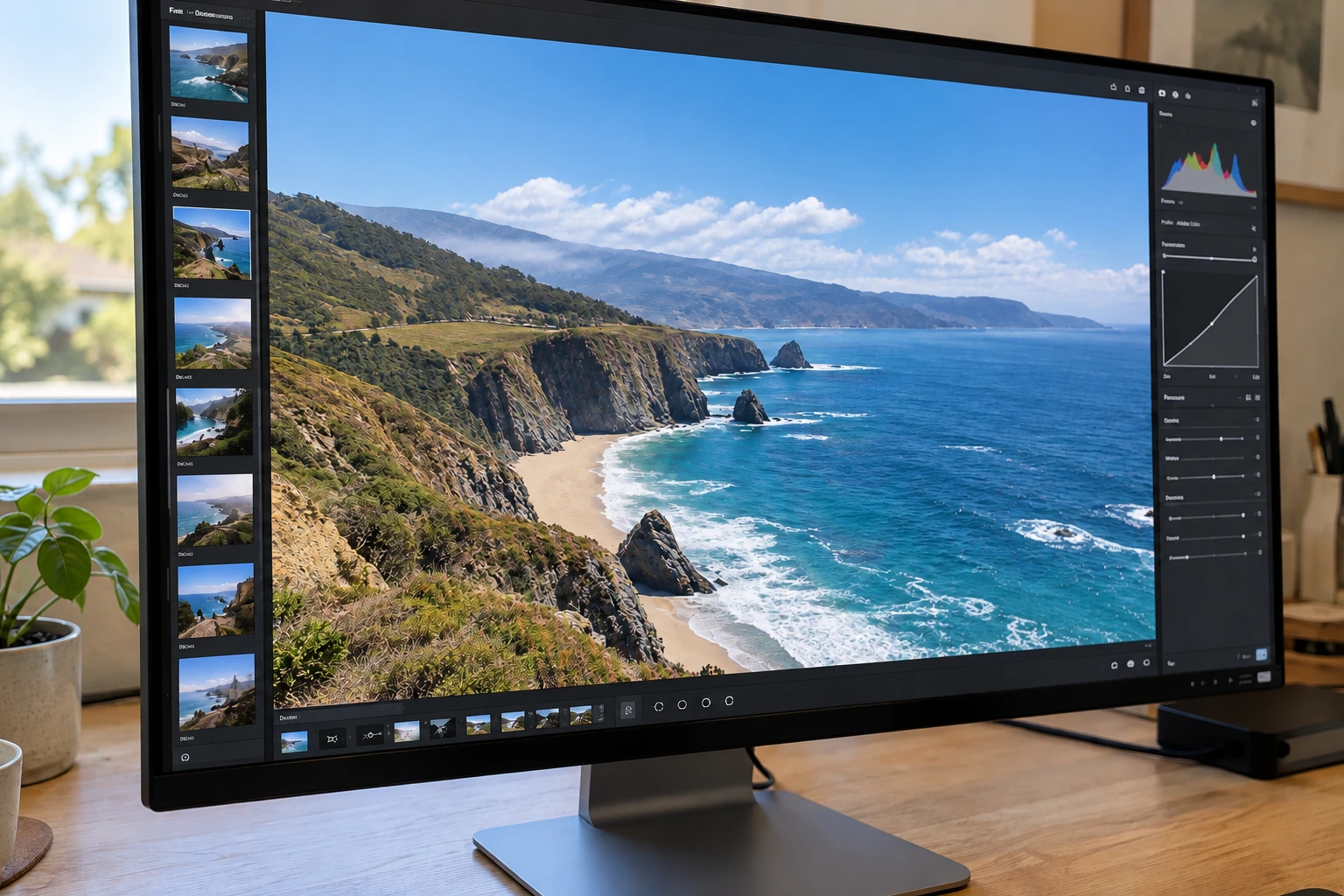
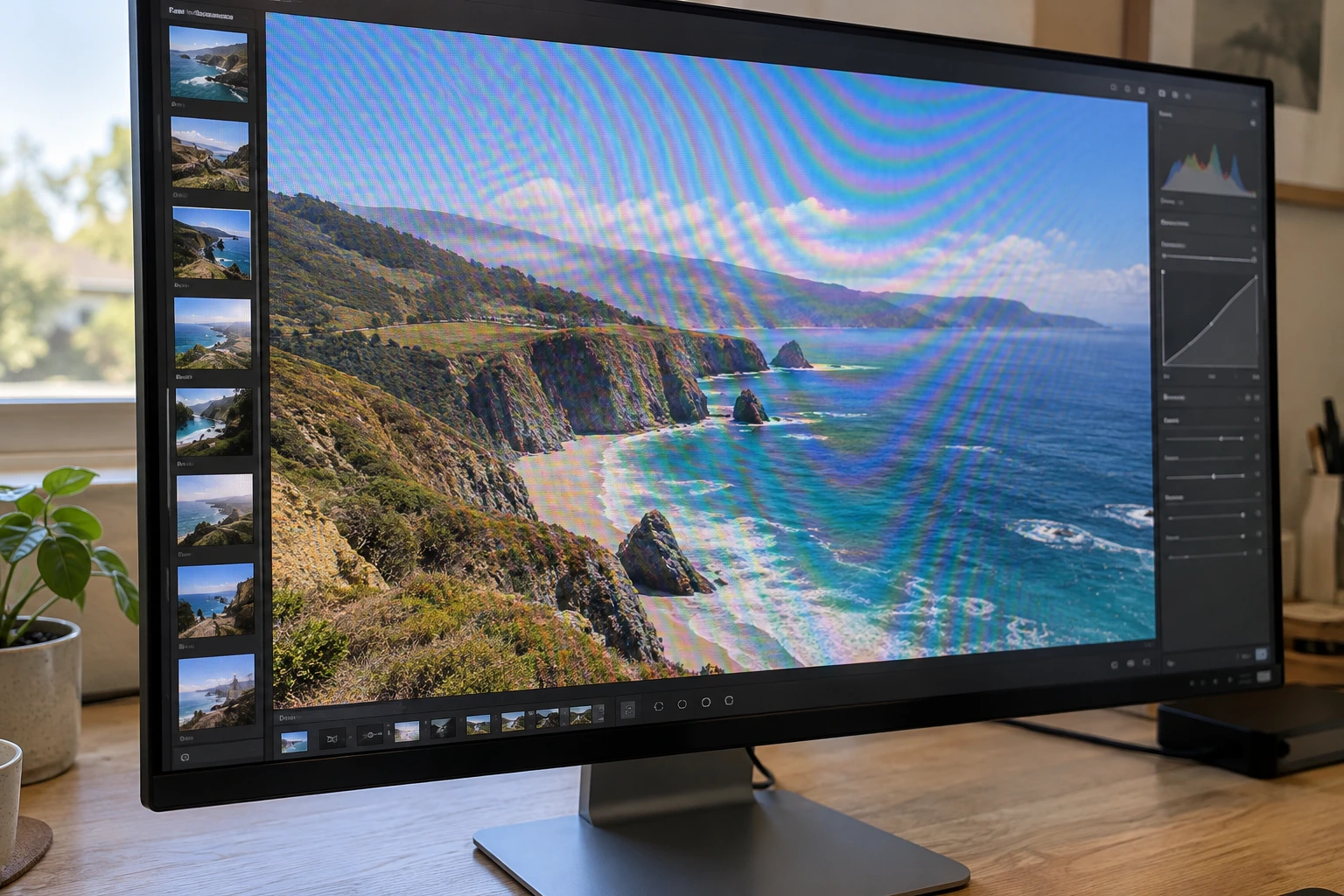
The rainbow moire crosses the sky and sea on this screen. Drag directly across the photo to compare the input with the actual tool output. Look beyond the waves: a useful correction should remove distracting interference while retaining the scene, framing, and screen interface. Check what changed and how much moire remains before considering another method.
Before you start: identify screen moire
Screen moire appears when a camera samples the fine pixel pattern of a display. Curved rainbow waves or a colored mesh may cross several unrelated parts of the screen, even though the content looks clean in person. Before you remove moire, check whether the pattern belongs to the photo rather than the original scene. The aim is to remove this interference, not the fine lines that form letters, icons, or a chart on the screen.
A broad dark stripe is not always moire. Display flicker, shutter timing, missed focus, and compression can create other defects in a screen capture. A tool that can remove fine rainbow moire may leave dark bands untouched. Pick two reference areas: a patch of obvious moire and a small piece of readable screen content. Keep both visible during comparison so that smoother color does not distract you from a damaged number or softened edge.
Upload your photo to remove screen moire
Select your screen photo. The tool starts automatically to remove moire; keep the tab open until the result loads.

To remove moire from the screen photo, open the tool and click Select files. Choose the original JPG, PNG, or WebP photo rather than a compressed messaging copy. Selection starts the upload and processing automatically; there is no additional processing button. The editor opens as the task runs. Leave the tab open until the processed image loads, and read any error before uploading again.
A cleaner source gives the moire tool more useful detail. Keep the screen photo at its existing dimensions and avoid extra sharpening, which can strengthen the pixel grid. A screenshot of a photograph is a different thing from a direct screen capture: it preserves the photographed interference while discarding detail. Converting an unsupported format to a high-quality JPG can make the file usable, but it does not remove moire. Check available credits before starting a new image.
Compare the screen before and after
Use the lower-right control to compare the processed image with the original photo before you decide whether it is ready.
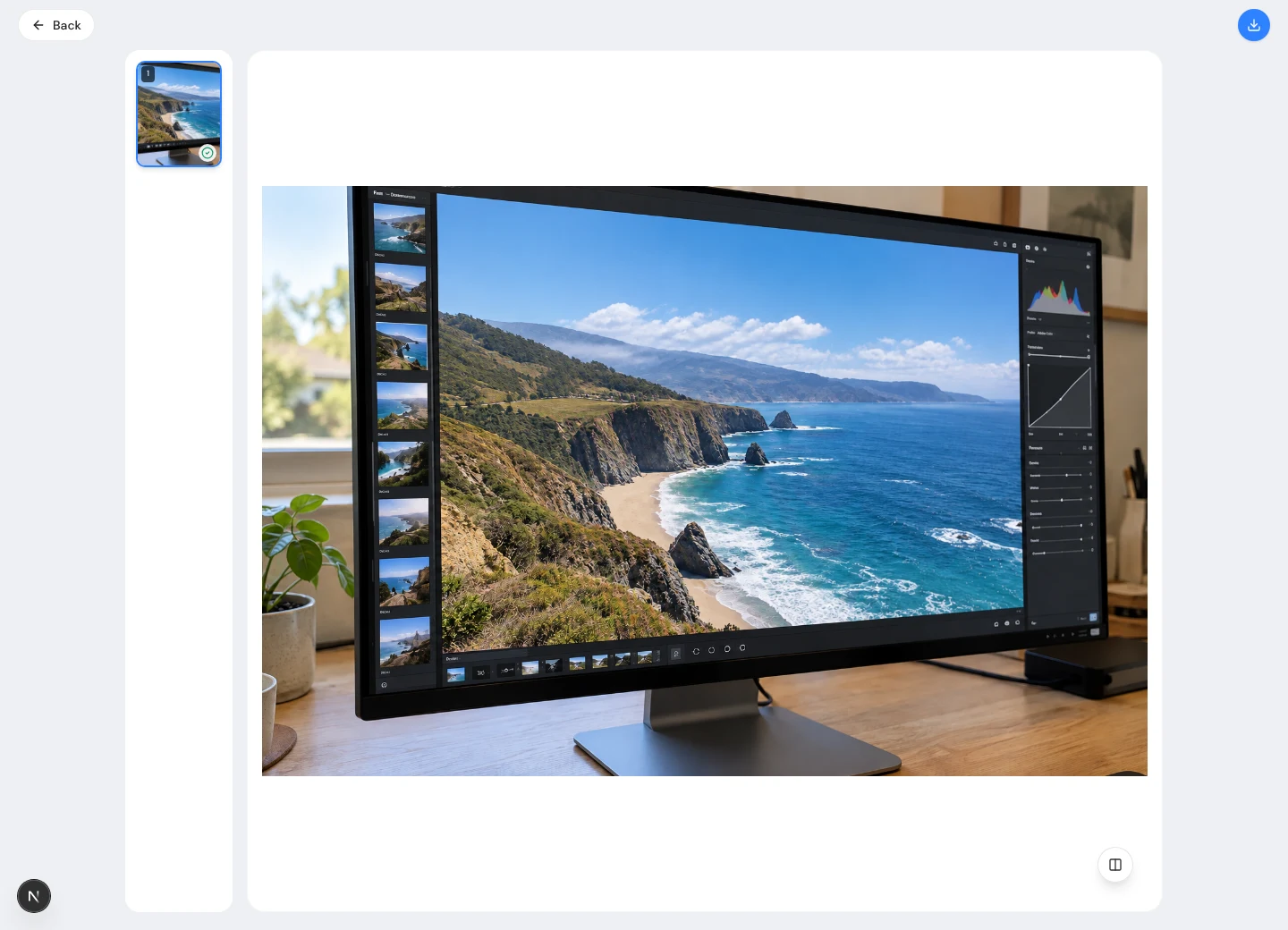
When the corrected photo opens, use the comparison icon in the lower-right corner to toggle the original. The button turns blue while the source is visible; click again to return to the result. Inspect how much moire remains across the screen, then look at small text. A correction can remove rainbow moire yet also soften punctuation. Fading color bands are encouraging, but check whether small characters have become softer at the same time.
Check interface labels, digits, thin chart lines, the bezel, and nearby objects at full size. The objective is to remove screen moire while keeping the screen content credible. Moire can already hide genuine pixels, so a newly readable character is not proof of the original wording. If an edit changes or obscures an important feature, compare it with the source application or a better reference. A pleasing photo is useful only when the required details remain trustworthy.
Download the corrected photo
Once you remove the distracting moire and check the screen details, use the top-right download icon to save your copy.
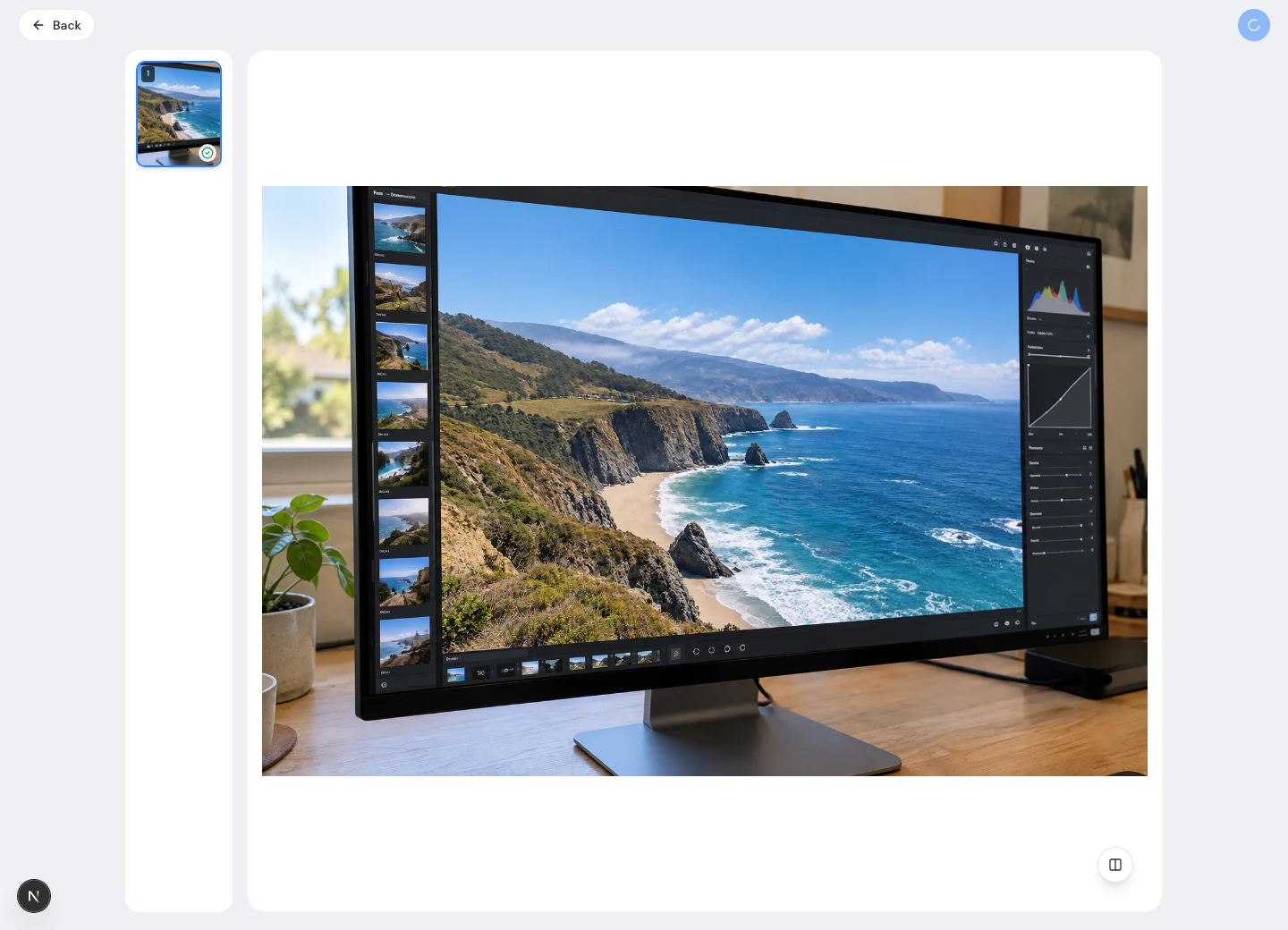
Once the moire correction meets your needs, click the download icon at the upper right of the editor. Check the browser's downloads location for the saved copy. Keep the source alongside it: the corrected image should not replace your only record of the original. Before using the image in a report, open the downloaded file. Check the saved dimensions and file type, especially if the destination will resize the screen photo.
Create delivery sizes from the approved moire correction. Resizing a screen photo changes the relationship between fine patterns and output pixels, which can make moire visible again. Inspect the final thumbnail as well as the larger screen image. If the pattern returns, review resizing and sharpening before trying to remove it with another processing pass. Gentle sharpening may improve presentation, but it cannot replace a check of small letters or restore detail that was never captured.
If you can shoot again
Reduce interference when retaking the photo
If the physical screen is still available, take several alternatives before relying on a heavy edit to remove moire. Move a little closer or farther away and compare the originals. This changes how the camera samples the display pixels and may reduce the strongest screen moire from the new photo. Keep the screen geometry suitable for your task: a dramatic angle may suppress one pattern while making the interface harder to read in a support report.
When retaking the photo, hold the camera steadily and compare focus as well as color. A slight focus change can reduce moire, but it may also blur fine screen detail. Avoid aggressive digital zoom or sharpening while testing. When broad dark bands dominate, investigate exposure and display settings instead of assuming spatial correction will remove flicker. Keep the clearest photo as your source; preventing screen interference and applying a restrained moire correction can be useful parts of the same workflow.
Choose how to remove moire from a screen
Use a direct screenshot when you only need the displayed information and have permission to capture it. This avoids the camera-to-screen sampling responsible for moire, so there is no photographed pixel grid to correct. A screenshot cannot document the monitor's physical condition, installation, reflections, or surroundings. When those matter, retain the camera photo and remove the distracting interference carefully. The right choice depends on what the screen image must communicate, including whether the physical device needs to remain visible.
For a small patch of color moire, a local editor offers control over the affected region. A masked adjustment can help remove false color without treating the whole screen or its surroundings. Strong blur can erase repeated detail, including real letters, so compare methods using the same source and delivery size. Evaluate the remaining moire and the screen detail together rather than judging smoothness alone. A smoother photo has little value if cleanup changes the interface you intended to document.
Explore local Photoshop correctionWhat can this tool realistically remove?
Can this remove every trace of screen moire? No. Dense moire, clipping, blur, and tiny source text may hide information that cannot be verified afterward. Treat a moire result as an edited version, not recovered evidence. When exact wording matters, obtain a clearer screen capture rather than repeatedly trying to remove artifacts from unreadable material. Reject a result that changes important screen details.
Can you remove moire from a whole screen recording here? This workflow processes a still photo or an exported frame, not an entire video. A successful frame does not establish consistent correction over time. For a photographed screen, use a good source, compare one result, and accept only moire corrections you can judge reliably. To remove moire from a printed page, use descreening for halftone dots. That pattern differs from camera-to-display interference.