
How to Remove Moire in Photoshop
Before & after
AI-generated comparison, not a Photoshop result.
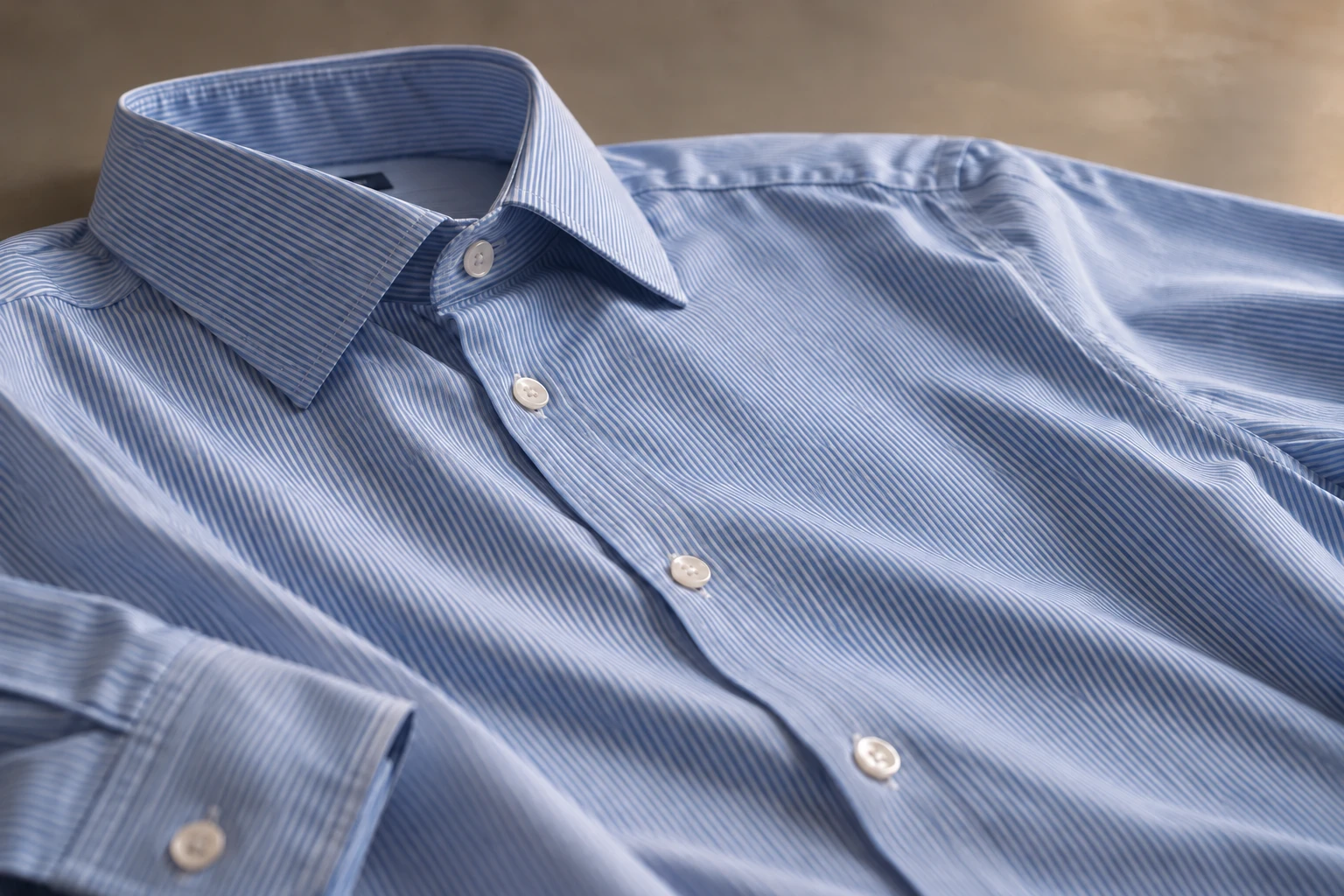
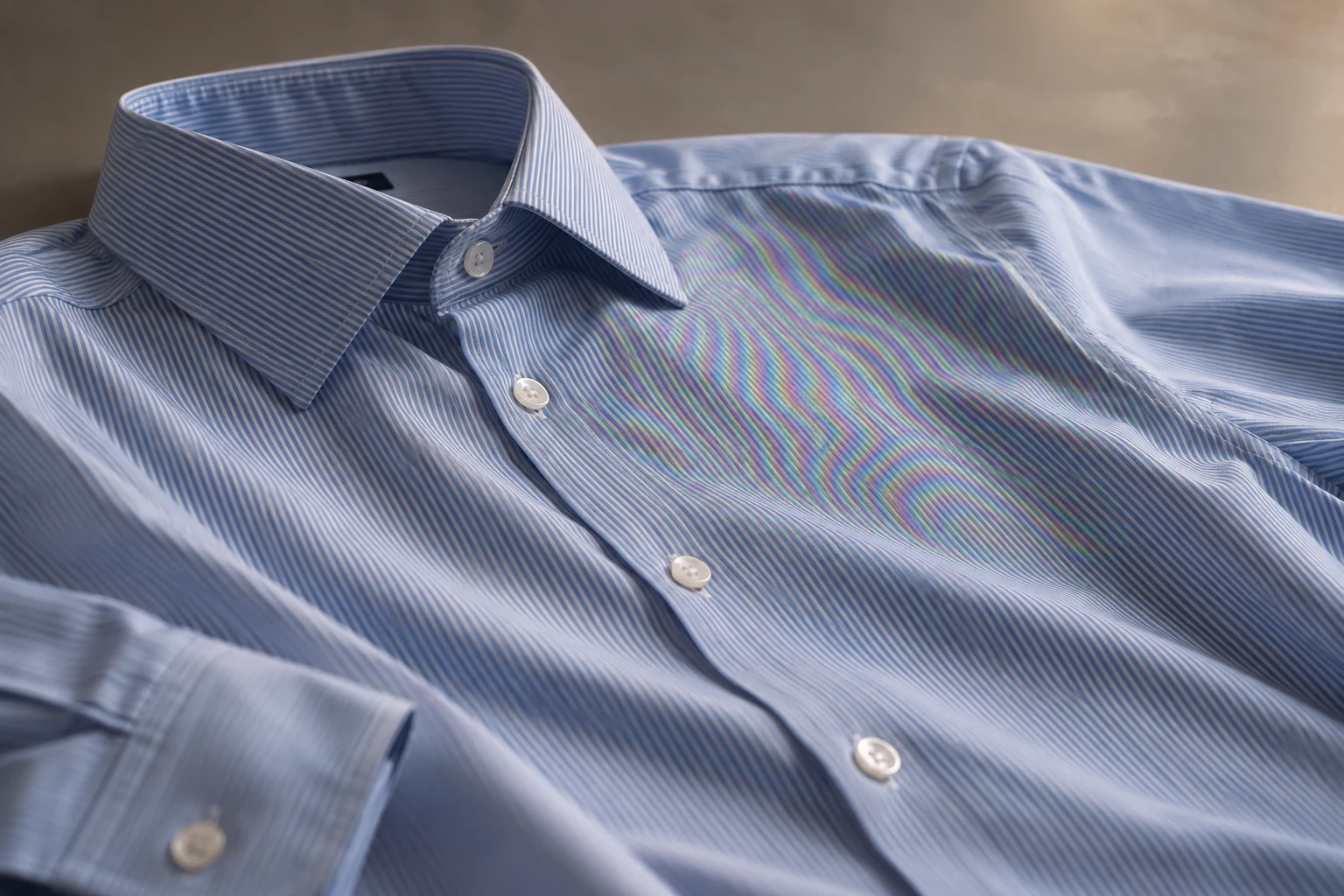
Identify moire before editing in Photoshop
To remove moire in Photoshop, identify whether you are seeing false color, brightness waves, or printed dots. A photographed display, a woven shirt, and a magazine scan can need different treatment. Photoshop offers local control, but no single adjustment can remove every moire artifact. Inspect the original at full size before choosing a technique for the particular pattern.
Before you remove moire in Photoshop, choose reference areas: the strongest moire, a fine edge, and readable text or a logo. Keep the same crop for every candidate. Photoshop comparisons should reveal losses as well as improvements. Remove only what conflicts with the photograph's purpose, and check that a smoother surface has not replaced useful texture with plausible-looking detail.
Preserve an editable original in Photoshop
Open the source in Photoshop, save a separate PSD, and duplicate the image layer. Convert the working layer to a Smart Object if you want an editable Camera Raw Filter.
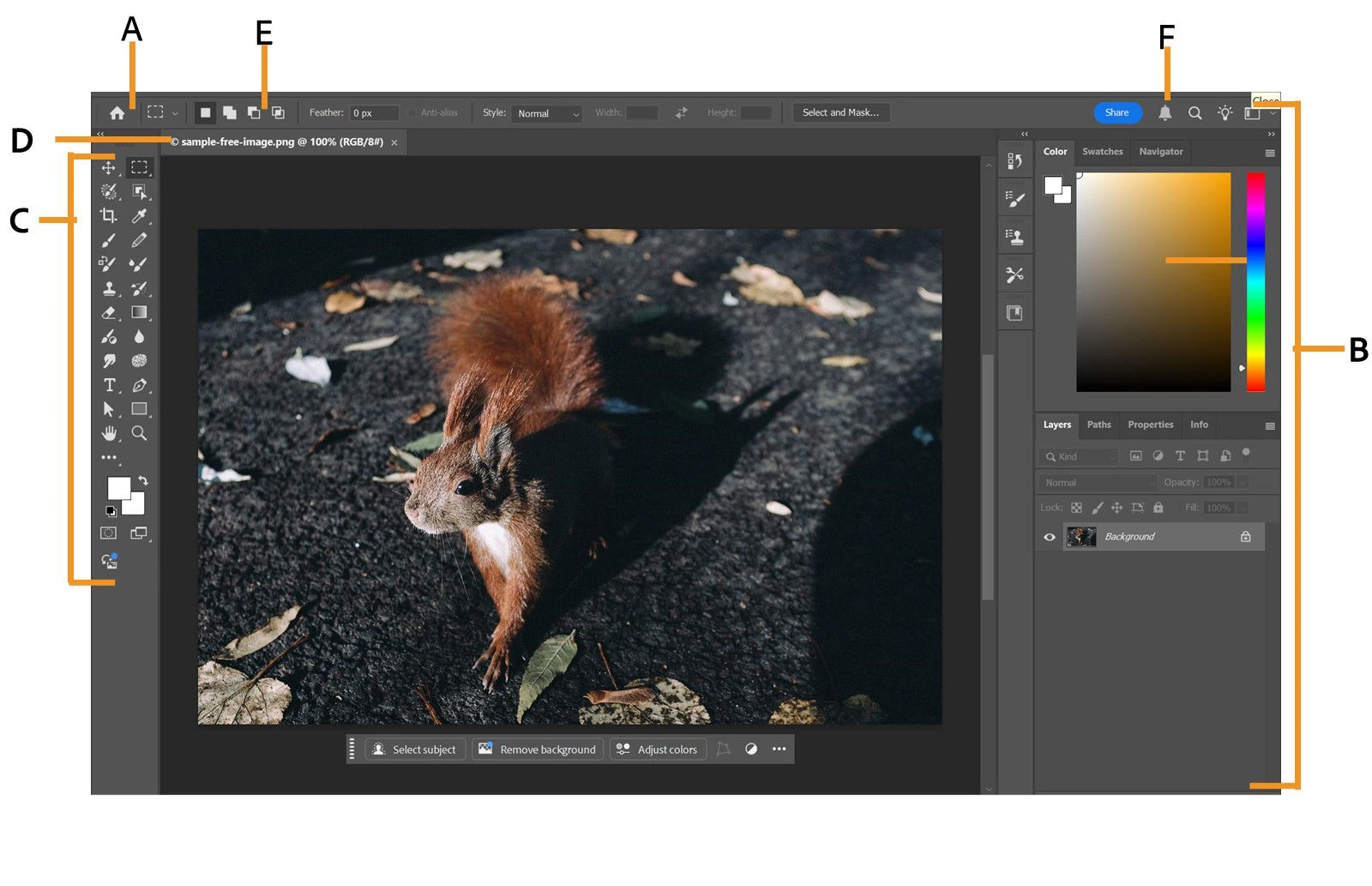
Open the best source in Photoshop and save a separate working PSD. Preserve an untouched layer before attempting to remove moire. Use copies or an editable filter workflow so comparison remains straightforward. Photoshop should let you revise a correction without repeatedly saving a flattened file. Remove moire from the original information available, rather than building a long chain of edits on already altered pixels.
If sharpening makes the weave or display grid more prominent, compare a restrained Photoshop baseline first. You may need to remove an earlier sharpening effect before judging the moire correction. Otherwise, stronger settings can seem necessary simply because the starting edit exaggerates moire. Keep the Photoshop source intact and remove only the changes that prevent a fair comparison, without discarding the unmodified reference.
Maintain identical cropping and dimensions during the Photoshop experiment. Resampling can change the visible moire even before you remove moire. Name candidates by method so you can trace which adjustment produced a difference. If a Photoshop attempt fails, return to the original. Do not remove useful detail from an already softened export in the hope that another round will recover what earlier edits lost.
Mask and reduce the color moire
Choose Filter > Camera Raw Filter, open Masking, and select the affected region. Adjust Moiré Reduction in small increments, then toggle the mask to compare.
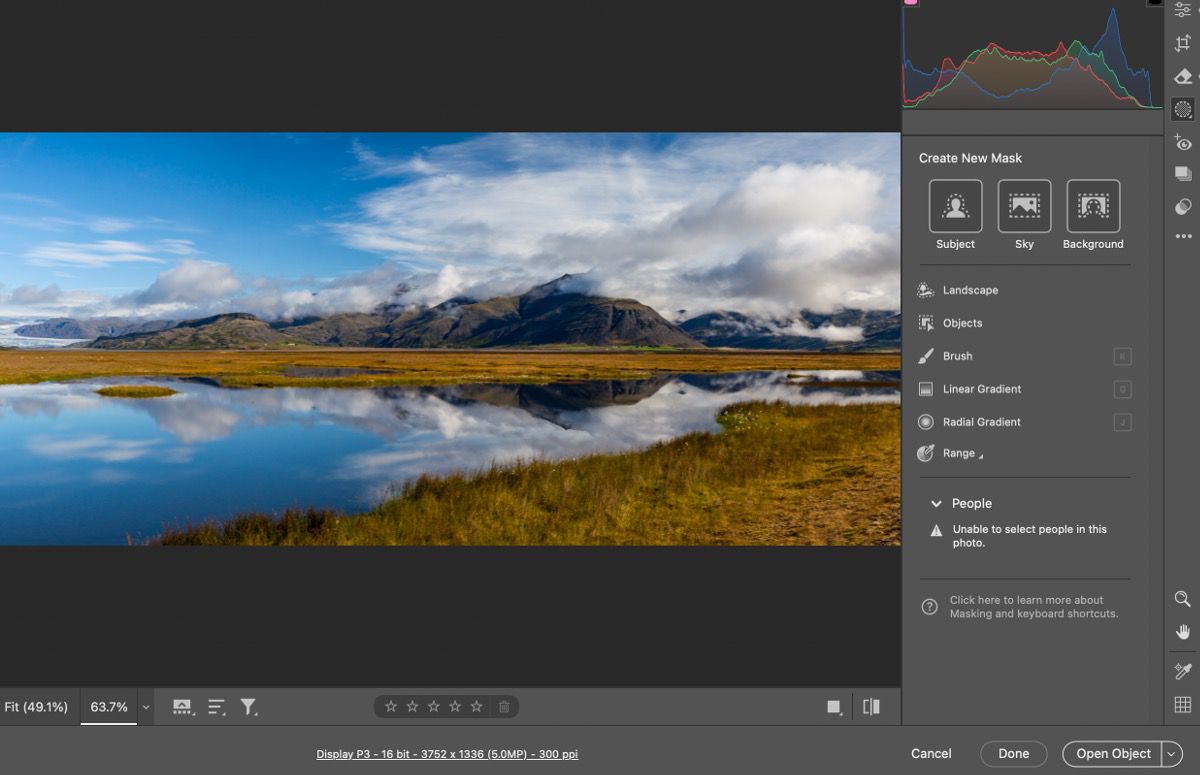
In Photoshop, choose Filter > Camera Raw Filter when available for the image and mode. Use an editable working copy, then create a local mask around the affected region. Locate the available Moiré adjustment and increase it gradually to remove color moire. Photoshop's Camera Raw interface can change between versions; follow Adobe's current documentation rather than assuming one copied value will remove every pattern.
Refine the mask before using Photoshop to remove moire. Keep skin, clean background, and unrelated lettering outside the adjustment where practical. A broad selection may extend beyond the problem. Inspect the overlay at full size. Photoshop can provide precise coverage, but even a perfect mask may remove authentic color detail alongside moire inside the region it treats.
Toggle the adjustment and compare color separately from brightness structure. Photoshop may remove rainbow moire while leaving a light-and-dark grid. Note that limitation instead of adding unrelated controls until the fabric looks flat. Save the candidate and compare the same crop again. Remove the remaining moire you can evaluate; Photoshop cannot establish accuracy simply because the preview becomes calmer.
Check the mask boundary in Photoshop around seams, logos, and small letters. You might remove moire in the center while creating an obvious change at the edge. Refine coverage or reduce strength before enlarging the selection. A local Photoshop edit should remove the distracting moire without making the treated region look detached from neighboring texture or changing the subject's important features.
For product photographs, compare real weave and label lettering after you remove the strongest waves. Photoshop can make a convincing surface that still differs from the original garment. Use another reliable reference to check what you remove when possible. If further Photoshop adjustment mainly changes genuine detail, stop. The goal is to remove a moire artifact, not quietly redesign a material or invent information the source no longer resolves.
Inspect the result and export from Photoshop
Keep the PSD, then use File > Export > Export As to create a delivery copy. Choose its format and dimensions, export, and reopen it. Compare thin edges, lettering, and fabric at the intended size before accepting the result.
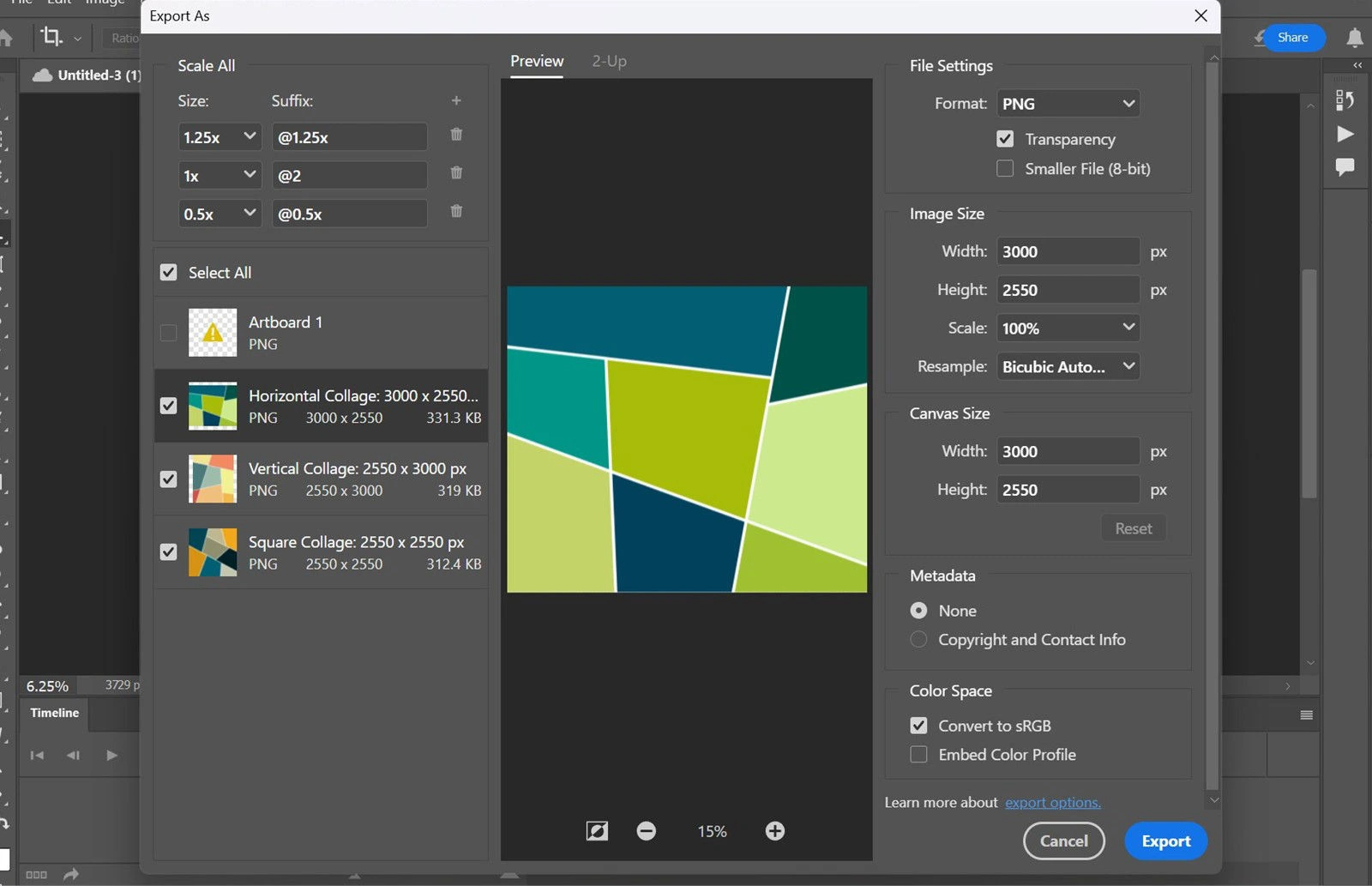
Save the working Photoshop document before exporting versions that remove the distracting pattern. Choose File > Export > Export As, set the format and dimensions, and reopen the saved copy. Resizing may reveal more moire after you remove the original moire. Compare the export with your Photoshop candidate. Do not remove more detail from the master until you have checked what the size change actually introduced.
Inspect both the large product image and its thumbnail outside Photoshop. Repeated textures can interact differently with each output size. A clean editing preview does not establish that the published image is clean. Use Photoshop to remove residual moire only when the file itself needs another correction, rather than trying to remove a display artifact visible at just one arbitrary viewer zoom.
Keep output sharpening restrained during the Photoshop comparison. Strong sharpening can emphasize residual moire, while repeated JPEG saves add compression damage. If an export looks worse, review those choices first. You may need to remove excess sharpening rather than strengthen the mask. Preserve the Photoshop master so future sizes can remove the same distraction without inheriting a compressed copy's additional artifacts.
Photoshop color blur for local moire
Another Photoshop experiment for color moire uses a duplicate layer, modest Gaussian Blur, and Color blending. Add a mask to restrict the change. This can remove some colored interference without treating every part of the image equally. Compare it with Camera Raw on the same crop. Photoshop's Color blend is not a detector: it may remove legitimate colored edges as well as the unwanted pattern.
Judge the Photoshop experiment around colored stitching, artwork, and small labels. A blur that reduces rainbow waves may also spread real color across a boundary. Remove only as much moire as those details tolerate. Avoid increasing blur simply because the pattern remains visible. Photoshop gives you control over the tradeoff; that control is useful only when you compare what you remove with what you preserve.
When to use a Photoshop alternative
Printed halftone dots often need descreening instead of stronger Photoshop color treatment. If the original survives, compare a scanner's descreen option on a small section. You may remove moire during capture while preserving more of the printed photograph. Bring the best scan into Photoshop afterward. Trying to remove a regular dot screen with unrelated adjustments can soften captions before it solves the underlying problem.
For a photographed monitor, compare the dedicated screen workflow with your Photoshop candidate. Both should use the same original and similar delivery dimensions. A tool may remove more visible moire while changing small interface details. Check digits and lettering against a reliable reference. Photoshop and online reconstruction offer different controls, but neither can remove uncertainty about information that the source never captured clearly.
If neither candidate preserves the subject, obtain a better capture when possible. Photoshop cannot remove the consequences of every focus error, clipped highlight, or severe sampling pattern. Record which details remain uncertain. Keep the original Photoshop source before trying to remove more interference from a corrected copy. A modest remaining wave may be acceptable when attempts to remove it would damage the information the image needs to communicate.
Can Photoshop remove every moire pattern?
Can Photoshop remove moire with global blur alone? Blur can reduce repeated detail, including the real subject. That makes it a poor default for readable text and fine textiles. Compare a local correction first. Photoshop should remove the unwanted interference without unnecessarily treating unaffected areas; a uniformly smooth result may look cleaner while preserving less of the photograph.
Does every Photoshop image have the same Camera Raw controls available? Availability depends on the document, mode, and application version. Check Adobe's guidance if the command or panel differs. Do not remove layers or convert the only original just to follow a menu path. Make a Photoshop working copy, then test whether the available workflow can remove the pattern without sacrificing required detail.
How do you know when to stop in Photoshop? Compare the original, the corrected crop, and the delivery file. Stop when further changes remove more useful texture than distraction. Keep the Photoshop document editable and retain the source. A clear record of the comparison is more useful than a promise to remove every trace of moire at every possible display size.