
How to Remove Moire in Lightroom Classic
Before & after
AI-generated comparison, not a Lightroom result.


When Lightroom can remove moire
To remove moire in Lightroom Classic, start by identifying false color on a small area of fabric. A local adjustment can remove distracting rainbow waves while leaving skin and background outside the selection. Lightroom is a useful starting point for moire removal, but broad brightness bands and strong screen grids may require another method. Judge the source before committing to a particular correction.
Choose a crop containing the strongest moire, a seam, and unaffected weave. Keep that crop visible as you use Lightroom to remove the moire. A small preview can hide texture loss. Lightroom comparisons should show both improvement and compromise: remove the distracting color only as far as the fabric remains credible, rather than treating the disappearance of every wave as the sole measure of success.
Open the original in Lightroom Classic
Import the original file, open Develop, and keep a baseline version before you remove any interference.

Import the original camera file into Lightroom when available. A RAW source offers flexibility without guaranteeing you can remove moire faithfully. Keep a baseline before trying to remove the pattern. Remove excess sharpening first if it exaggerates the weave. Lightroom should remove an unwanted artifact from a useful source, rather than conceal damage introduced by an unnecessarily aggressive earlier edit.
Open Develop and compare the moire-affected fabric at full size before deciding which moire to remove. Decide which features must survive as you remove moire in Lightroom: stitching, true color, fine checks, and logos may all be important. Lightroom can make the surface look quieter while altering those details. Remove the distracting pattern only when the resulting photograph still communicates the garment accurately enough for the intended portrait or product listing.
Keep the Lightroom source accessible throughout the experiment. Name each moire candidate, using identical dimensions and crops before you remove interference. Resizing between versions changes the sampling relationship and can make moire look different without preserving more information. If you remove interference in Lightroom and later change the delivery size, assess those as separate decisions. Do not remove extra texture merely to compensate for an inconsistent comparison.
Mask the affected fabric and reduce moire
Choose Masking, use Brush or a suitable selection, and refine the affected area. With the mask selected, increase Moiré gradually. Check the selection overlay before adjusting the fabric.
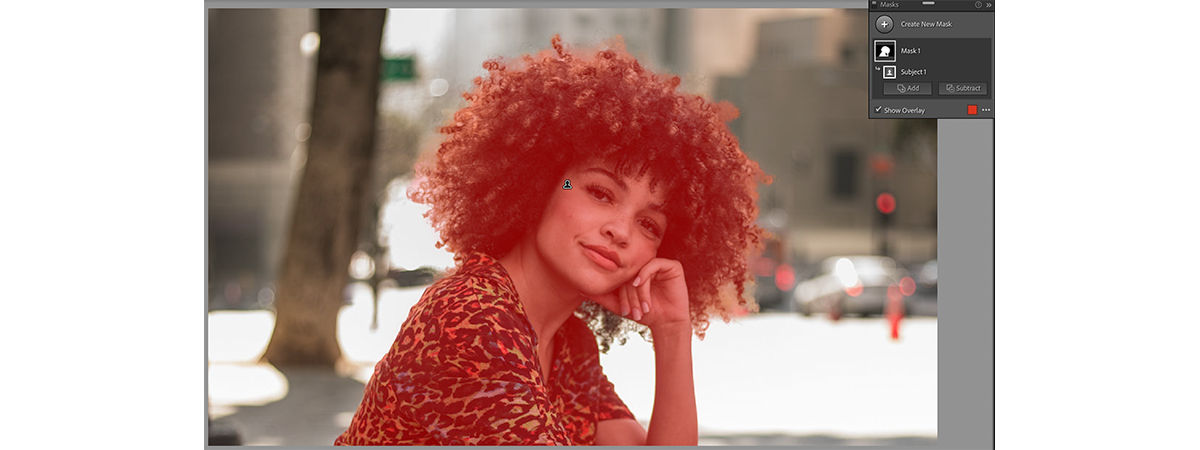
In Lightroom Classic, choose Masking and select a suitable method for the affected garment. Brush can help remove moire from a small region while keeping unrelated detail outside the correction. Display the overlay and inspect the boundaries. Lightroom subject selection may include the face as well as clothing, so refine the coverage before adjusting strength. Remove only the interference you can evaluate inside a useful selection.
Refine the Lightroom mask to remove moire while protecting skin, hair, and clean background. Avoid treating an entire subject merely because one fabric panel needs attention. You may remove moire in the jacket while needlessly changing a nearby logo or a sharp seam. Inspect feathering at full size. A precise Lightroom mask helps remove the moire locally; coverage alone cannot verify texture fidelity.
With the mask selected, locate the Moiré control available in your Lightroom Classic version. Increase it gradually while watching the chosen crop. There is no fixed value that will remove moire from every garment. Lightroom interfaces can change, so check Adobe's guidance if the panel differs. Stop when more adjustment fails to remove a useful amount of interference or begins making the real weave look less convincing.
Toggle the Lightroom adjustment to compare false color and structure separately. If the rainbow waves fade but a brightness pattern remains, note that difference. Do not remove saturation across the whole photograph to disguise a local moire problem. Lightroom gives you several controls, but unrelated changes make it harder to judge what worked. Remove the specific distraction first, then assess whether the remaining moire needs another approach.
Review the transition between treated and untreated fabric in Lightroom. A smooth central patch with a visible boundary is not a convincing correction. Refine the mask or reduce its strength rather than expanding it across every clean area. If you cannot remove moire without producing a painted surface, keep the baseline. Lightroom should help remove a moire artifact while preserving the subject, not require a different-looking garment to hide it.
Compare the Lightroom result and export a copy
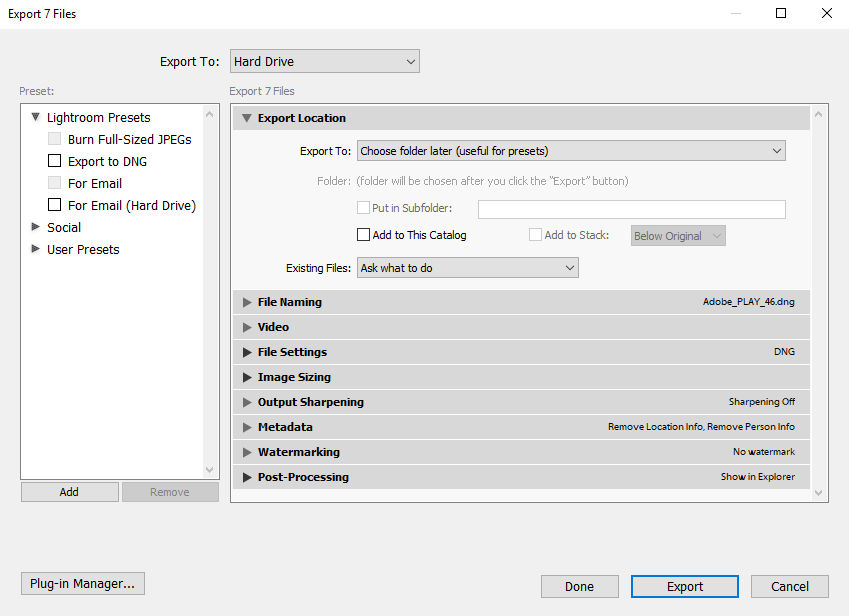
Toggle the local adjustment, inspect the same crop, then choose File > Export. Set the destination, format, and delivery dimensions in Lightroom Classic, export, and reopen the saved file to check it.
Compare seams, buttons, fine checks, and folds after you remove the strongest moire. Lightroom previews can look persuasive while small details have softened. Check neighboring clean fabric as well as the affected patch. If the adjustment changes a recognizable pattern, reduce it. A useful Lightroom result should remove the distraction without making the corrected region appear disconnected from the rest of the garment.
For product work, compare the physical garment or another reliable image alongside Lightroom. The source may contain false color, so matching it perfectly is not always appropriate. You cannot remove uncertainty simply by producing a pleasing preview. Lightroom can help remove moire from a listing image, but it cannot by itself verify the original textile color or reconstruct every thread hidden by interference.
Once you approve the Lightroom candidate, choose File > Export and set the delivery dimensions. Reopen the exported file rather than relying only on Develop. Resizing may create a new pattern even after you remove the original moire. Check both the main store image and its thumbnail. Lightroom export choices should preserve the accepted correction; do not remove more fabric detail until you have reviewed resizing and sharpening.
Remove excessive output sharpening while testing the Lightroom export. Heavy sharpening can emphasize residual interference, especially at small sizes. Compare the saved Lightroom file with the approved full-size version before changing the moire mask. You may need to remove an overly aggressive sharpening setting rather than strengthen the moire adjustment. Keep the Lightroom working version so another delivery size does not require you to remove texture from an already compressed copy.
Limits of Lightroom moire correction
Lightroom may remove colored interference without resolving broad light-and-dark waves. A photographed monitor combines pixel structure, small text, and other demanding detail that differs from woven clothing. If the adjustment cannot remove enough moire without changing the content, stop increasing it. Compare the original through another workflow. Lightroom's local control is useful, but the available control does not determine whether every source is suitable.
An online tool provides another candidate when you want to remove moire without building a detailed mask. Compare it with the Lightroom version using the same original and final dimensions. A smoother or smaller image is not automatically more accurate. Lightroom and an online reconstruction may preserve different details; remove the distraction only as far as the information required for the task remains trustworthy.
For printed dots, compare descreening instead of assuming the Lightroom fabric adjustment is the right tool. A magazine scan can contain genuine ink dots as well as larger interference. Choose a method to remove that printing structure, then review the lettering. Lightroom remains useful for later color work, but trying to remove the wrong kind of moire with stronger local settings may remove useful detail before it solves the underlying problem.
Can Lightroom remove every moire pattern?
Can you remove moire the same way in every Lightroom product? Interfaces and supported controls vary between Classic, desktop, mobile, and versions. This guide describes Lightroom Classic; check the documentation if your panel differs. A missing control does not establish that there is no interference; verify the toolset before deciding whether another application can remove the artifact more appropriately.
Will Lightroom recover every thread? No. Moire can hide information rather than simply overlay it with color. An adjustment may remove a visible wave without recovering the weave beneath it. Compare meaningful details and the delivery export. If Lightroom cannot remove enough interference while retaining the required texture, reshoot when possible or keep a clearly limited derivative rather than claiming exact textile fidelity.
What is a useful stopping point in Lightroom? Remove only what distracts from the garment; stop when further adjustment mainly changes real detail. You do not need to remove every trace at every zoom. Keep the Lightroom source, the accepted Lightroom edit, and the final export. That gives you a practical way to remove a distraction today without sacrificing the reference needed for a future version.