
How to Remove Halftone Dots from Scanned Photos
Before & after
Actual tool output for the same halftone scan used in the three-step walkthrough below.
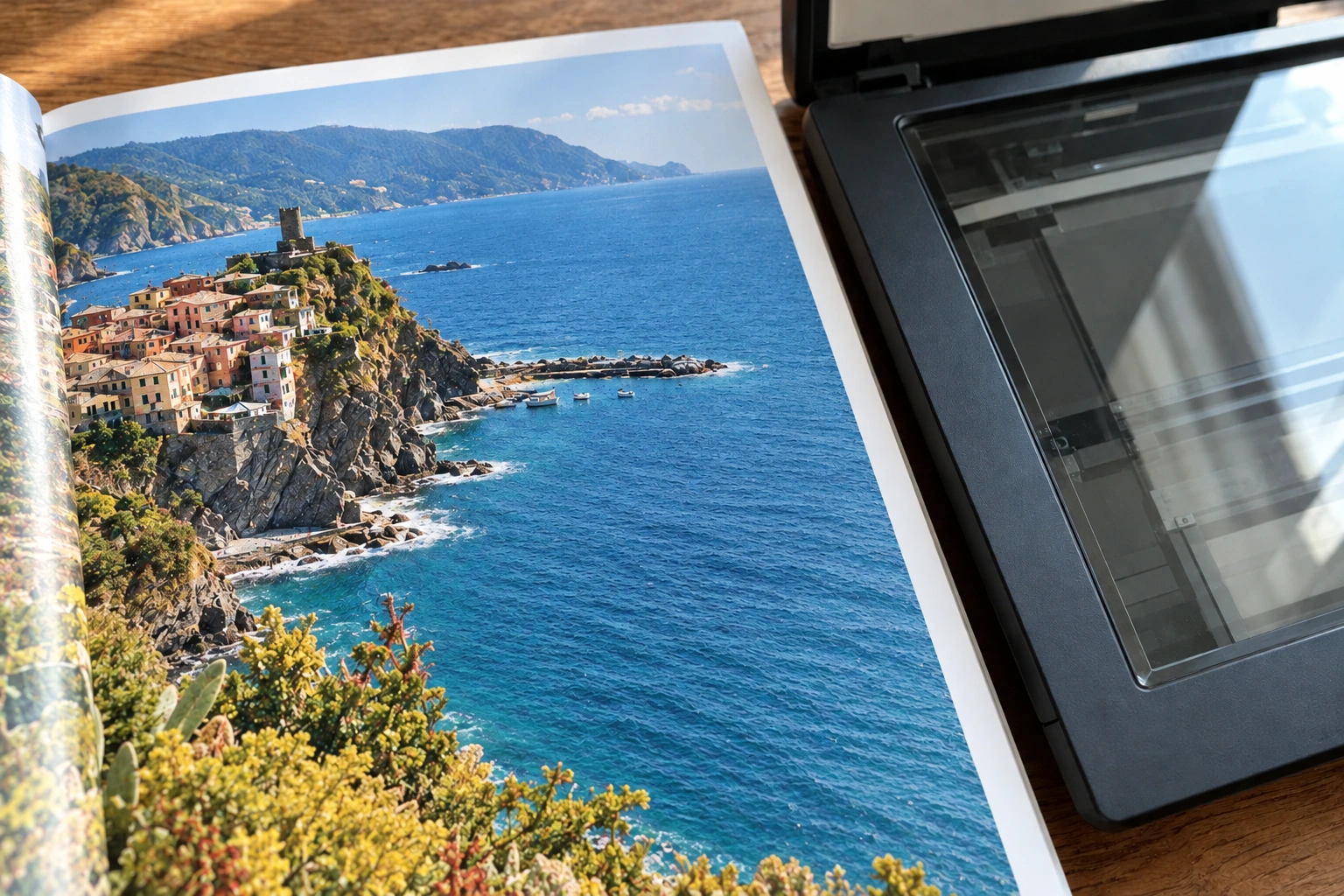
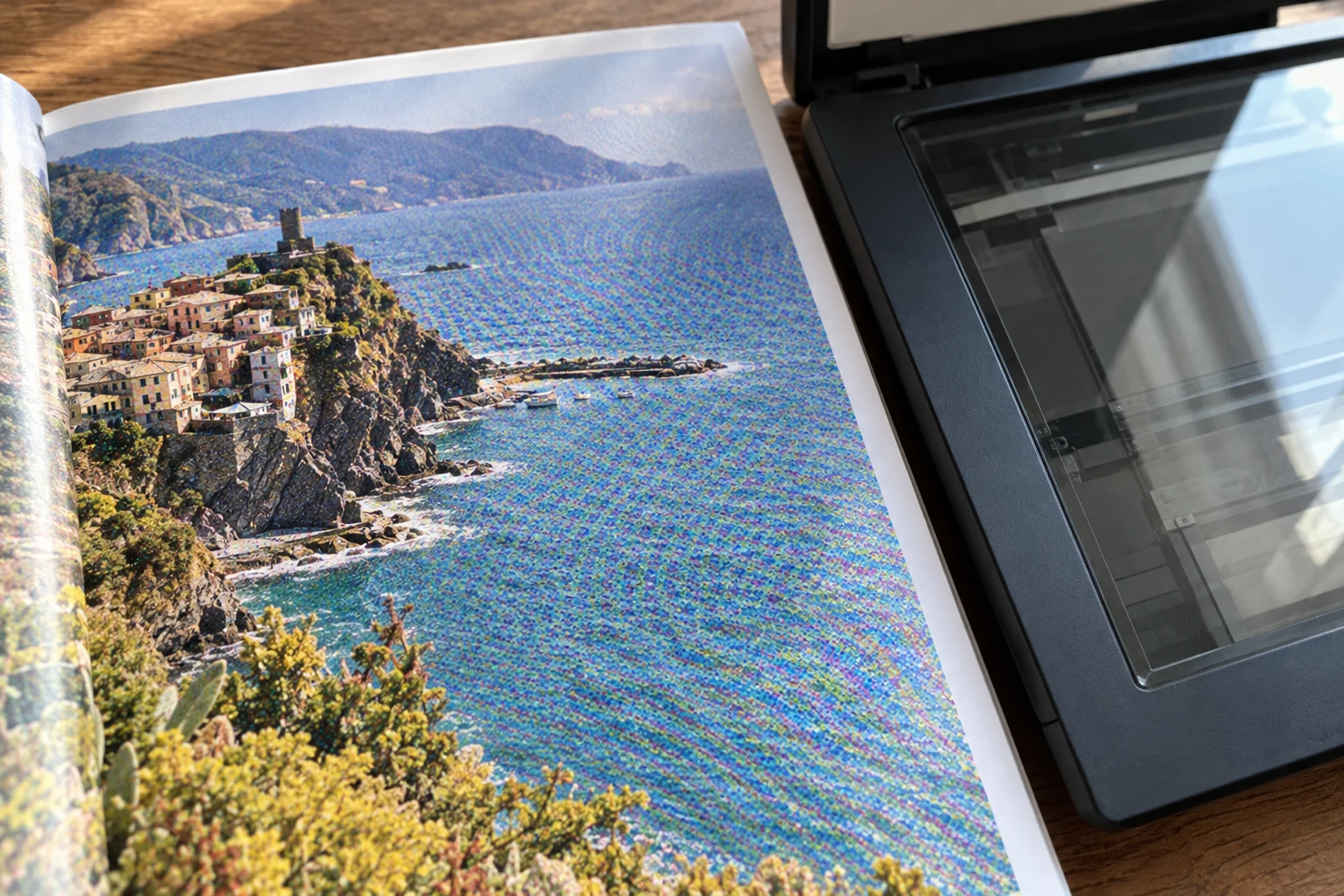
Separate printed dots from scan moire
To remove halftone dots from scanned photos, first inspect what the print actually contains. A magazine reproduces continuous tones through a regular halftone screen. Its dots can remain visible after scanning, while a second, larger pattern appears where sampling interferes with that screen. Decide whether you want to remove the visible dots, remove the larger interference, or preserve a faithful record of the printed surface.
Enlarge a face, a caption, and a plain background before choosing a halftone treatment. Regular dots across a photograph suggest screened printing; isolated spots may be dust. Do not remove grain just because it resembles dots at thumbnail size. A continuous-tone photographic print may contain no halftone dots at all. Identify the source before you remove texture, and keep an untouched scan for comparison.
Upload the scan to remove halftone dots
Open Descreen Image, choose Select files, and upload a JPG, PNG, or WebP scan. The tool starts automatically to remove halftone interference; keep the tab open until the result loads. Inspect the original dots before accepting a smoother copy.
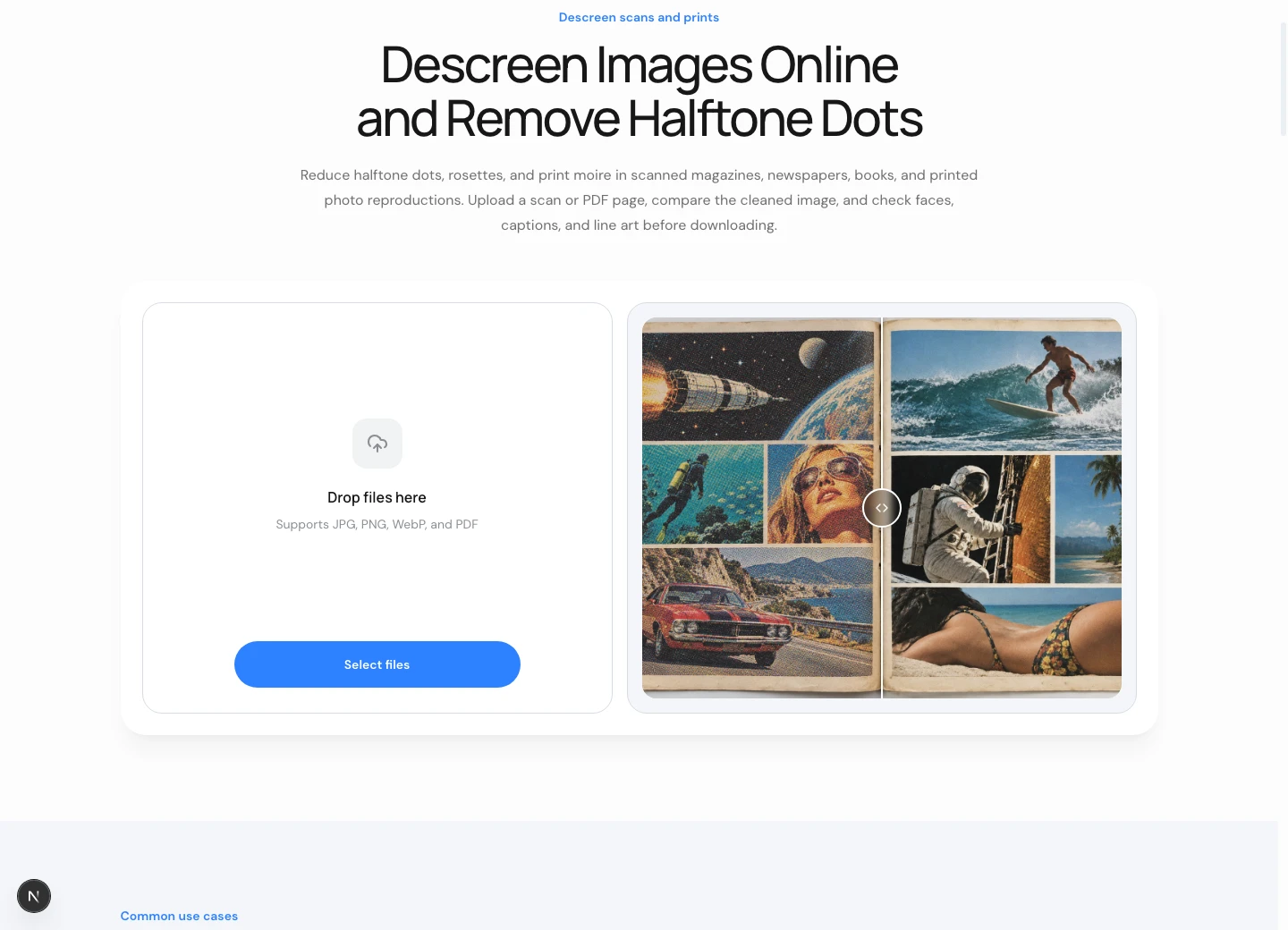
Choose the least compressed file available before you remove halftone texture. Messaging apps can resize scans and add artifacts around the original dots. Preserve the existing dimensions, then make a working copy. Enlarging a thumbnail cannot recover printed detail, and converting formats cannot remove dots by itself. A good halftone source with clear dots lets you judge what changed without confusing reconstruction with earlier compression or sharpening.
For a PDF, export the relevant page as a supported image and inspect it separately. You may need to remove halftone interference from a photograph while leaving neighboring text untouched. Mark three reference areas: obvious dots, a delicate outline beside the dots, and readable lettering. These checks help you remove unwanted texture rather than meaningful marks. If different pictures use different halftone screens, do not assume one result represents every set of dots.
Compare halftone removal and fine details
Use the lower-right comparison control to toggle between the original scan and the result. Check whether the treatment could remove halftone dots while preserving faces, captions, and fine edges at the same scale.
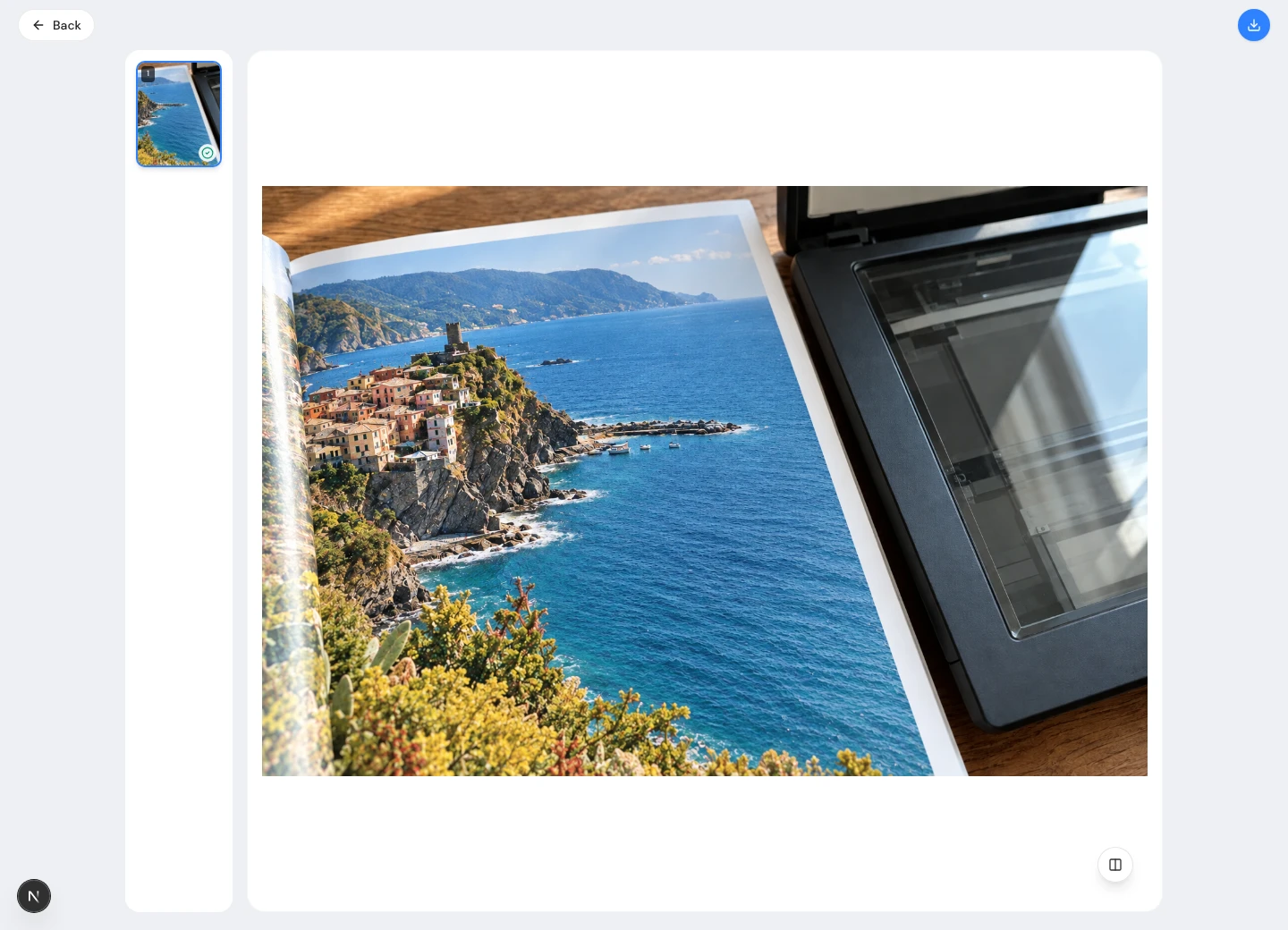
Use the comparison control to check which halftone dots remain and what the treatment can remove. Watch the halftone picture and its surrounding caption at the same scale. The aim is to remove distracting dots while retaining recognizable features. A smoother halftone portrait can still have altered eyes or lettering. Accept the candidate only when the remaining dots and the preserved detail suit your intended use.
Do not repeatedly process the output just to remove every last dot. Each pass can change information that the first halftone correction already reconstructed. If another attempt is necessary, compare it with the untouched source. Keep separate filenames so a failed attempt to remove halftone dots never replaces the original. Strong halftone interference may hide the subject; trying to remove more dots cannot establish what the missing detail originally looked like.
Check eyes, mouths, hairlines, and clothing edges after you remove the most obvious halftone pattern. Fine dots and meaningful features can occupy similar scales. Compare both rather than judging only the smooth background. For an archive, retain the source and label the derivative clearly. Do not remove fine facial detail just to make the dots disappear. Successful halftone cleanup should remove distractions without treating plausible new features as recovered evidence.
Next check dates, captions, signatures, and thin drawing lines. Do not remove intentional stippling or comic dots merely because the halftone photograph looks better without them. A page may mix several visual languages. If you need to remove interference from one picture, a local workflow can protect the rest. Judge the halftone region independently, and stop if attempts to remove halftone dots change nearby lettering.
Download and check the saved scan
Use the upper-right download icon after you remove distracting halftone texture and review the dots at full size. Reopen the saved image to check fine detail before publishing or making a smaller copy.
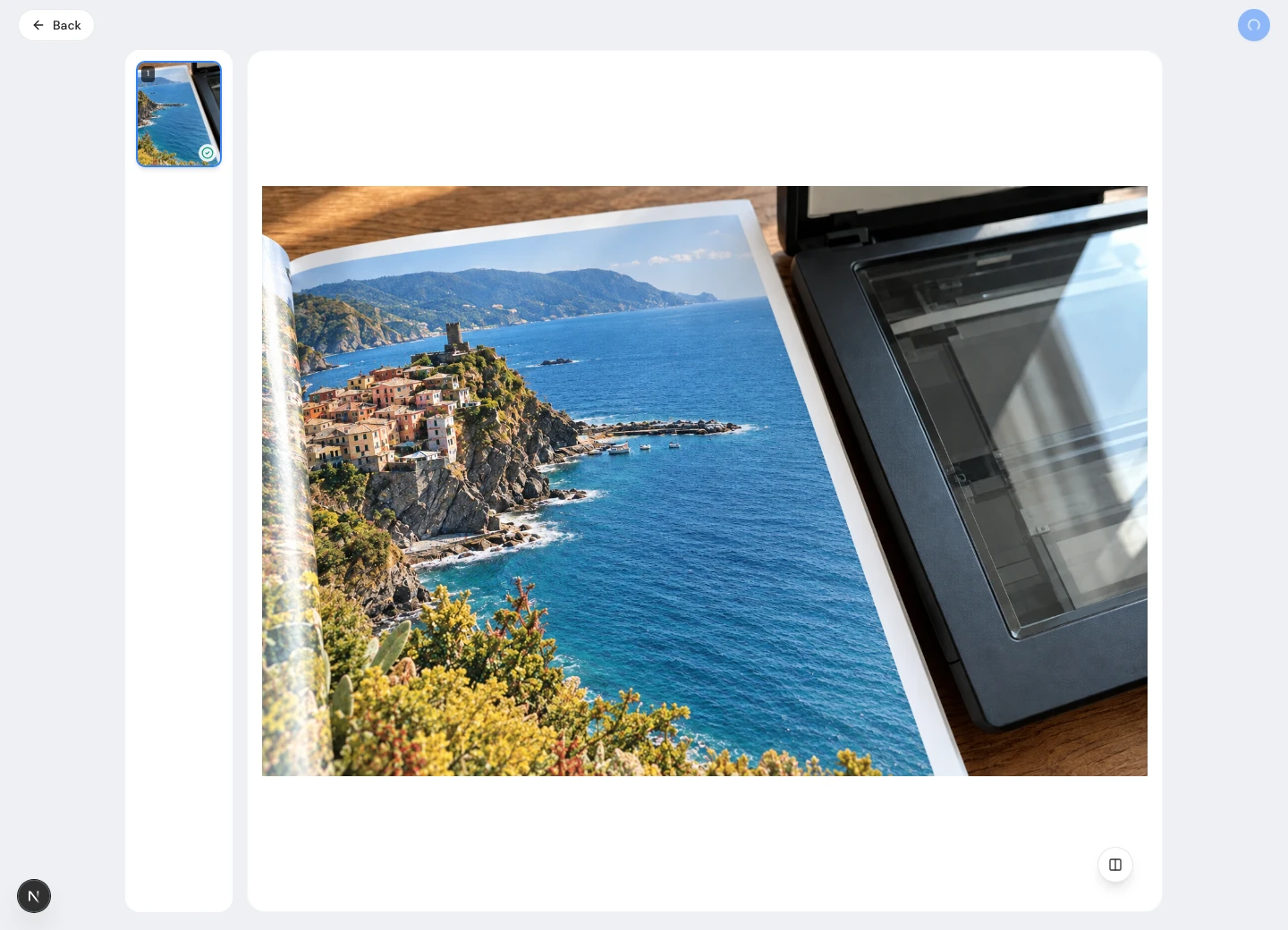
Once you approve the halftone result, download a full-size copy before making smaller versions. Resizing changes how printed dots interact with output pixels, so a web thumbnail may show a pattern absent from the larger file. Review both. If you need to remove newly visible interference, reconsider the resize first. Do not automatically remove more halftone detail from the master when only the smaller dots look different.
Apply restrained sharpening after you remove the unwanted halftone pattern, then reopen the saved file. Heavy sharpening can emphasize remaining dots and undo the visual improvement. Keep the original scan alongside the derivative and avoid repeated JPEG saves. Do not remove useful picture detail by overwriting your only master. A reading copy and an archival record have different purposes; neither requires you to remove all evidence of the halftone dots.
Rescan the original to reduce scan moire
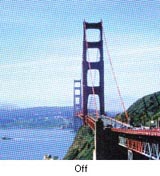
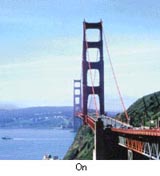
If the print survives, compare your scanner's Descreen or Moire Reduction setting before attempting to remove halftone artifacts afterward. Scan a small section with the option off and on. Inspect the dots and fine edges together. The setting should remove a distracting pattern without making the picture unusable. Follow the scanner documentation: the best halftone treatment depends on the material, not a universal instruction to remove dots at one resolution.
Keep the page flat and avoid unnecessary rescaling during the test. Disable aggressive input sharpening while judging the halftone screen, since it can exaggerate dots as well as lettering. If the software offers a material preset, compare one matching the print. Avoid settings that remove legible text along with halftone dots, and retain a reference scan. Newspaper dots and magazine halftone dots can respond differently; a stronger setting does not necessarily remove interference more faithfully.
Compare the dots across the sky and bridge at the same size. With descreening off, the halftone grid is more visible; with it on, the picture looks smoother. Check bridge cables and edges as well: a setting should remove distracting dots without erasing real lines. Use the same checks on your own scan before accepting a stronger halftone treatment.
Use a local editor for isolated moire
A local editor helps when you want to remove halftone dots from a single photograph surrounded by delicate text. Duplicate the source, select the picture, and compare a mild treatment with the original. Keep nearby halftone dots or illustration marks outside the selection when they belong to the artwork. Avoid global blur when trying to remove halftone dots: it can remove fine letters before it produces an acceptable halftone reproduction.
GIMP offers a desktop experiment you can compare with the online candidate. Use the same halftone source crop and final dimensions for both. A larger export can make dots seem less obvious without preserving more information. Compare which treatment can remove the distraction while retaining edges, then judge whether either can remove halftone dots faithfully. Plugin availability alone says little about whether a particular filter can remove your halftone dots.
Common halftone and moire questions
Will descreening remove scratches or stains? These are separate restoration tasks, even when they appear beside halftone dots. Judge each operation independently so you can identify what changed. Remove damage on a separate working version when necessary. A smoother halftone picture does not prove that lost information was recovered, and trying to remove dots more aggressively may make a damaged area appear convincing without making it accurate.
Should all scanned photos lose their dots? No. Remove halftone texture only when it conflicts with the intended reproduction. For preservation, keep the original printing structure; for a reading copy, a restrained derivative may be useful. If you cannot remove the interference without changing important detail, retain the source and explain the limitation. The goal is useful halftone cleanup, not a promise to remove every trace of dots.