
How to Remove Moire in GIMP
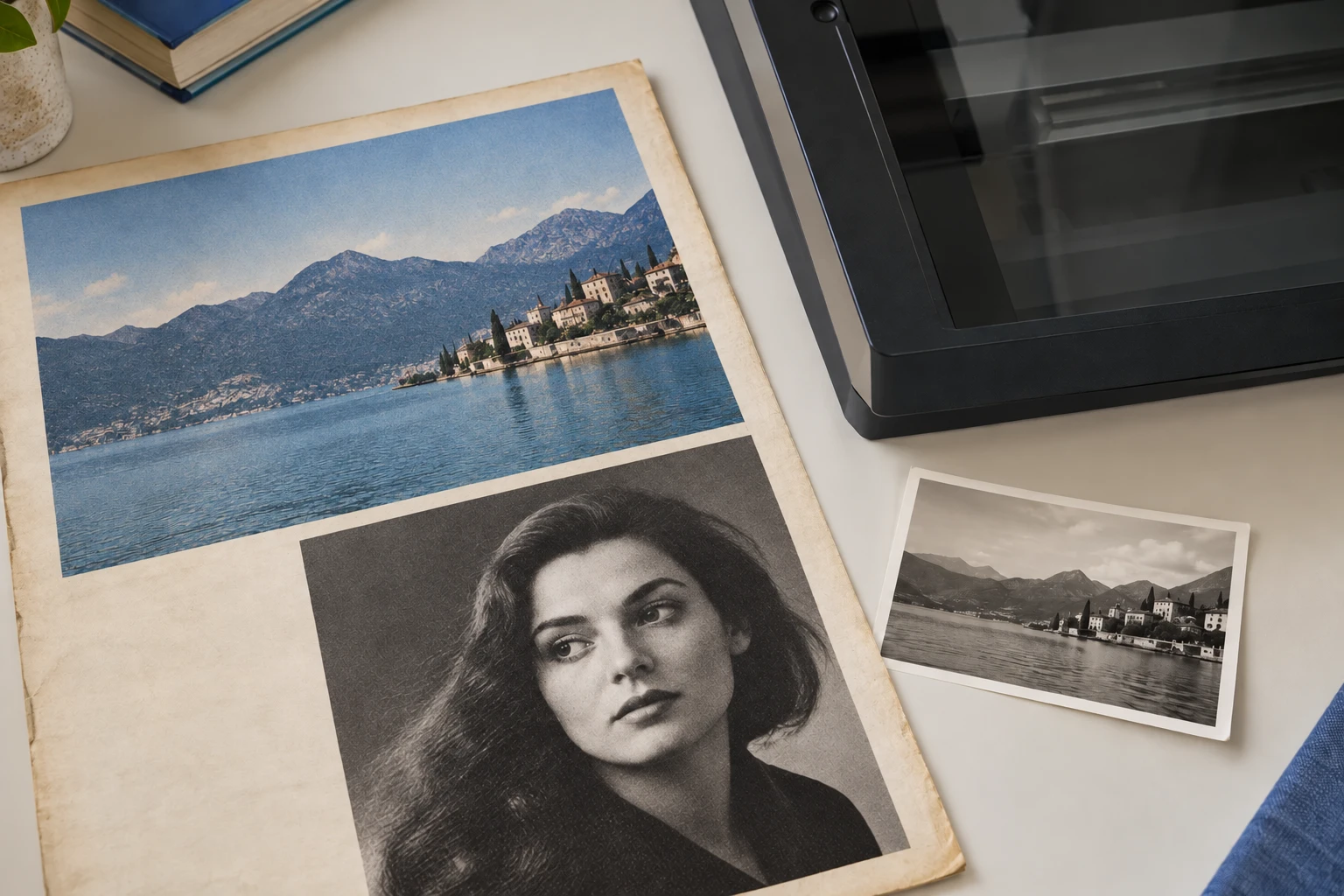
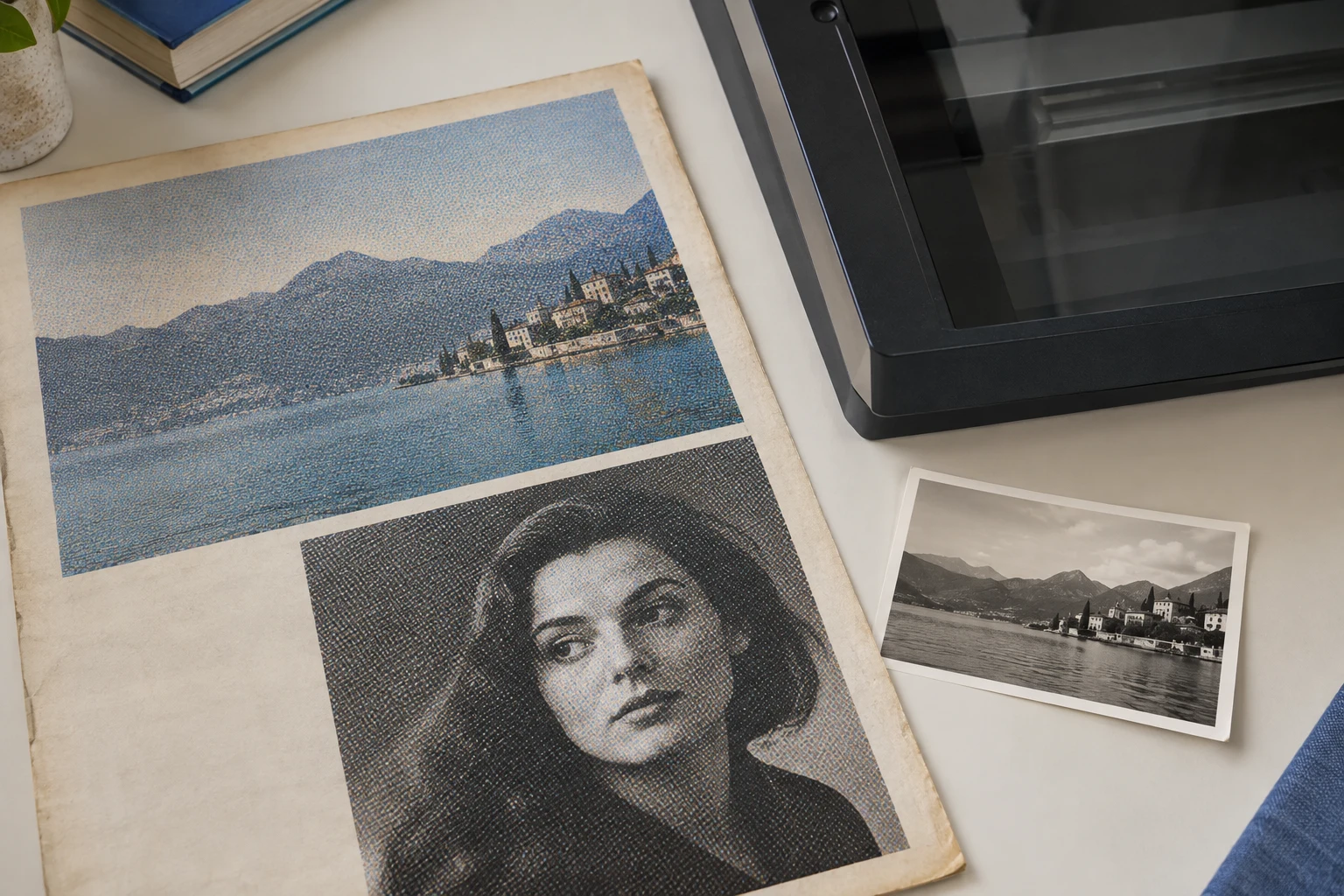
Before & after
AI-generated comparison, not a GIMP result.
Identify moire before editing in GIMP
To remove moire in GIMP, identify the source before choosing a filter. Printed dots, false color on fabric, and a photographed screen grid are different problems. GIMP offers local control; general smoothing cannot remove every moire pattern faithfully. Inspect the image at full size and choose a representative crop with useful detail beside the moire.
Use the same reference crop throughout the GIMP experiment. Include a face or caption for a magazine, a seam for clothing, and small readable text for a screen. Trying to remove moire without checking those features can produce a smoother but less accurate picture. GIMP comparisons should show both effects, so remove only the distraction that the subject can tolerate losing.
Open the source and save an XCF copy
In GIMP, choose File > Open and select the original. Save a separate XCF working file, then duplicate the image layer in the Layers dock before making changes.
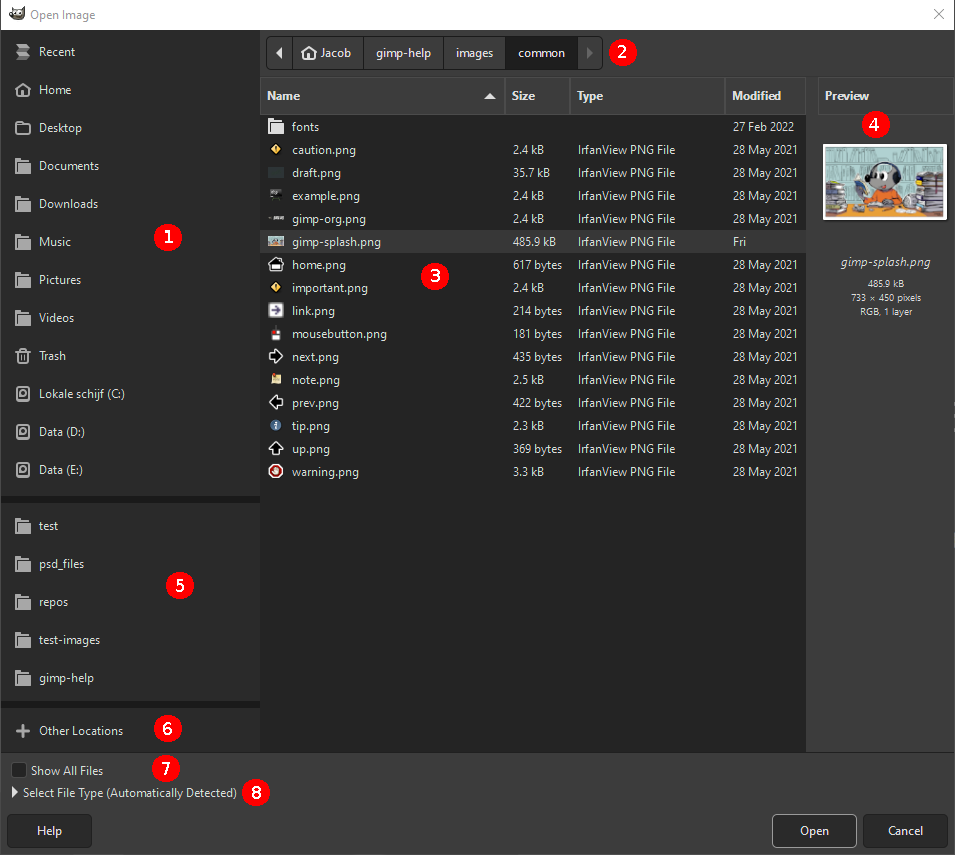
Open the least compressed source in GIMP and save a separate XCF working file. Preserve an untouched layer before you remove moire. Duplicate the image layer for each candidate, using clear names for the methods you test. GIMP can then show the source and edit at identical dimensions. Remove moire on a working copy rather than repeatedly exporting and reopening a damaged JPEG.
Keep the original crop and dimensions during the first GIMP comparison. Resizing changes repeated detail and may make the pattern look different before you remove anything. Name the baseline before testing what each filter can remove. A GIMP candidate should remove artifacts while preserving information, rather than appear better because of different scaling.
If a filter is unavailable in GIMP, check the image mode and the manual before assuming it is missing. Work on a separate copy if a conversion is necessary. Do not remove your only source layer to make an experiment possible. GIMP should retain a reversible baseline while you find out whether a particular filter can remove the moire acceptably.
Select the affected area and try Despeckle
Select a small test region, then choose Filters > Enhance > Despeckle. Enable Preview and compare a restrained Radius setting. Remove only as much interference as the drawing or photograph can tolerate. Check the preview for lost edges before applying the filter.
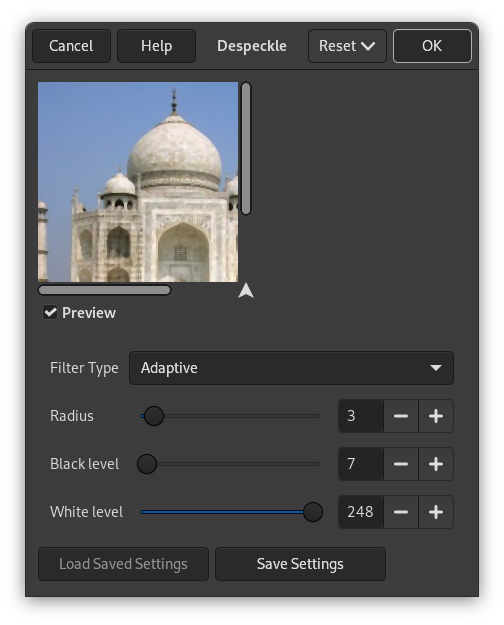
Select a test region in GIMP, then choose Filters > Enhance > Despeckle. The manual describes a median-based operation and recommends limiting treatment to affected areas. Enable Preview and compare conservative settings to remove unwanted moire gradually. GIMP Despeckle can be a useful scan experiment, but it is not a dedicated guarantee that you can remove every kind of moire.
Increase the affected neighborhood only while the GIMP preview retains credible detail. If letters, eyes, or fine lines merge before the moire becomes acceptable, stop. Stronger settings may remove moire simply by smoothing the entire region. Compare the candidate with the original GIMP layer at the same zoom, and decide whether the improvement justifies the useful information the filter may remove.
For a mixed page, use GIMP to remove moire from the screened photograph rather than the surrounding caption. A selection or layer mask can protect unrelated areas. Inspect the boundary for a visible change in sharpness or tone. GIMP local control does not make the treatment more accurate inside the patch, but it can remove an unnecessary tradeoff from clean parts of the document.
For fabric, compare weave, folds, seams, and product labels in GIMP. You may remove colored moire while softening authentic threads. Use a reliable reference when exact texture matters. A calmer GIMP preview does not establish that the garment has been reconstructed faithfully. Remove only as much moire as the image can lose without changing the material it is meant to describe.
For screens, check tiny symbols and digits before accepting the GIMP edit. A plausible new character is not proof of the original wording. If the filter cannot remove moire without altering that information, obtain a direct capture or a better photograph. Keep the GIMP source unchanged so another method can start from the original rather than trying to remove artifacts from an already altered result.
Compare layers and export the image
Toggle the edited layer’s visibility in GIMP to compare it with the untouched original. Save the XCF, then choose File > Export As, set the filename and file type, and export a separate copy. Reopen that copy to check the delivery size.
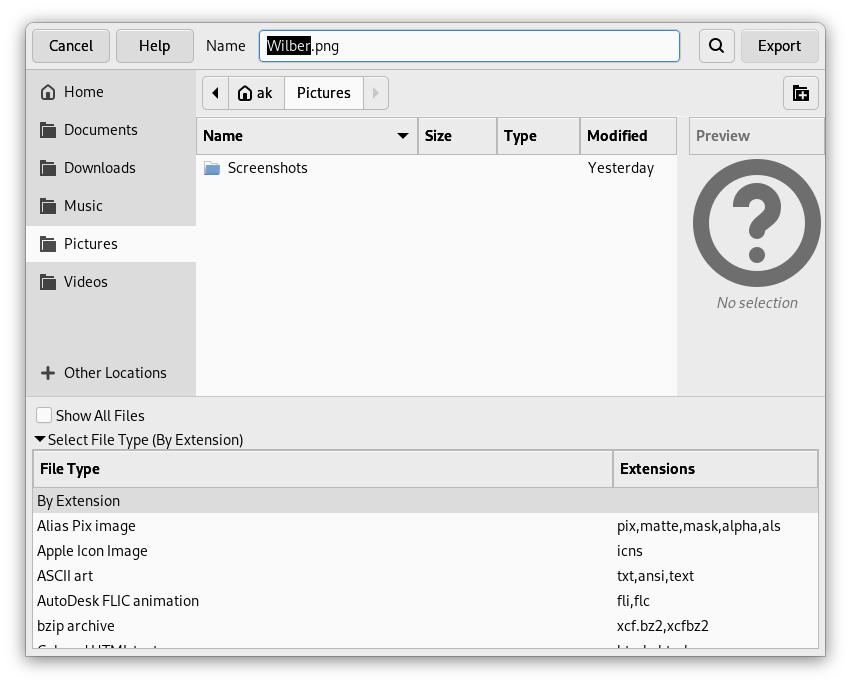
Toggle the edited layer in GIMP to compare it with the untouched source, then save the XCF. Once the candidate can remove enough moire for your task, choose File > Export As for a delivery copy. Reopen that file outside GIMP and inspect its dimensions. Do not remove more detail until you know whether any new pattern comes from resizing or the original correction.
Keep the full-size GIMP candidate before trying to remove moire in smaller copies. Repeated detail can interact differently with each output size, especially in thumbnails. You may remove moire from the master yet see interference in a small preview. Review the resizing choices first. GIMP should remove persistent moire from the saved image, not compensate blindly for every display scale in every possible viewer.
Use gentle output sharpening during the GIMP export comparison. Strong sharpening can emphasize residual moire, and repeated JPEG saves add compression artifacts. If the delivery copy looks worse, remove excessive sharpening before changing the original treatment. Keep the editable GIMP document so another export can remove the same distraction without inheriting unnecessary changes from an earlier compressed copy.
Investigate a compatible G'MIC-Qt workflow
G'MIC-Qt is optional software, not a built-in guarantee of your GIMP installation. Check its official information for operating-system and version compatibility. Preserve a clean working copy before testing whether a filter can remove moire. GIMP plugin names and available options can change, so verify the current filter list rather than assuming an old menu path will remove the moire in your file.
Compare any plugin candidate with the same GIMP crop used for Despeckle. Start with a restrained setting to remove interference, keeping the source beside it. A filter labeled for moire may still remove fine texture or alter outlines. Record the plugin version and settings with the GIMP working file. Reproducibility helps you judge whether another attempt can remove more interference without repeating an avoidable loss of detail.
If a plugin's controls are unclear, limit the GIMP test to a small region. Do not apply strong moire treatment across a page simply for a smoother preview. It may remove intentional dots along with the unwanted moire. A GIMP plugin should earn its place through comparison with the original, including which details it preserves and which meaningful marks it may remove.
Compare GIMP and online moire methods
An online descreen tool offers another candidate when you want to remove print moire without installing a GIMP plugin. Upload a supported copy of the same source and compare similar final dimensions. A smaller output may appear cleaner simply because it hides detail. Judge the GIMP candidate and the online result by what they preserve as well as how much moire they remove.
GIMP is useful when a photograph needs local treatment within a mixed page. An online result may offer a different balance of convenience and reconstruction. Neither method can remove the need to inspect faces, lettering, and authentic texture. If the GIMP version and the alternative both change important features, return to the source. A better scan may remove more uncertainty than another software pass.
Can GIMP remove every moire pattern?
Can GIMP Despeckle remove every moire pattern? No. It changes local image information and may soften the subject along with the interference. Compare how much moire you can remove from a limited region before treating the whole file. GIMP can help remove a distraction, but a filter's name does not establish suitability for dense screen grids, fine textiles, or every printed dot structure.
Will a free editor remove detail less accurately than paid software? Price does not determine what information survives in the source. GIMP and another application may offer different controls, but neither can verify detail hidden by severe moire without a reference. Keep the GIMP original and document the limitation. Remove only the interference you can evaluate rather than promising complete recovery from an unreadable source.
When is the GIMP result ready? Compare the source crop, the corrected image, and the actual export at its intended size. Stop when further changes remove more useful structure than distraction. Keep the GIMP XCF with its baseline layer. That lets a future edit remove a remaining artifact without forcing you to reverse decisions from a flattened file.